
Software
Microsoft Edge packs powerful features most users overlook. These seven pro tips will transform your browsing experience—boosting speed, security, and productivity without sacrificing simplicity.
Enable Immersive Reader for distraction-free focus
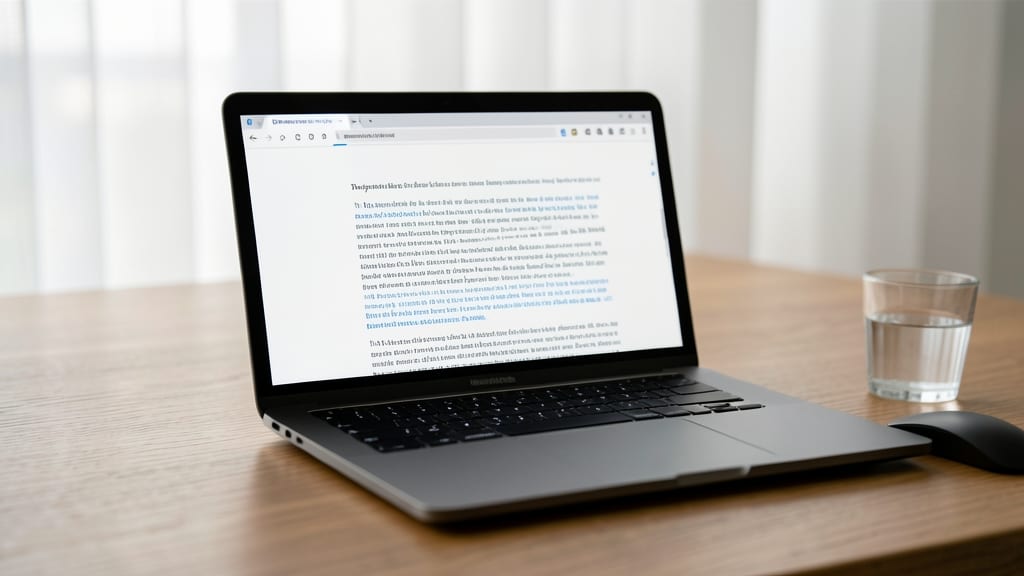
Struggling to focus while reading long documents or articles? Microsoft Edge’s Immersive Reader strips away distractions—no ads, no toolbars—leaving only the text you need. This built-in tool is a game-changer for students, writers, and anyone drowning in digital clutter.
With customizable fonts (including dyslexia-friendly options), adjustable line spacing, and color themes, you can tailor the experience to your eyes. It even reads text aloud with natural pacing if you prefer audio. The best part? It preserves formatting like headings and lists, so your research stays organized. Just click the Immersive Reader icon in the toolbar to activate it instantly.
Perfect for late-night study sessions or deep writing sprints, this tool turns your browser into a clutter-free workspace. Give it a try—your focus will thank you! ✨
Use Collections to organize research instantly
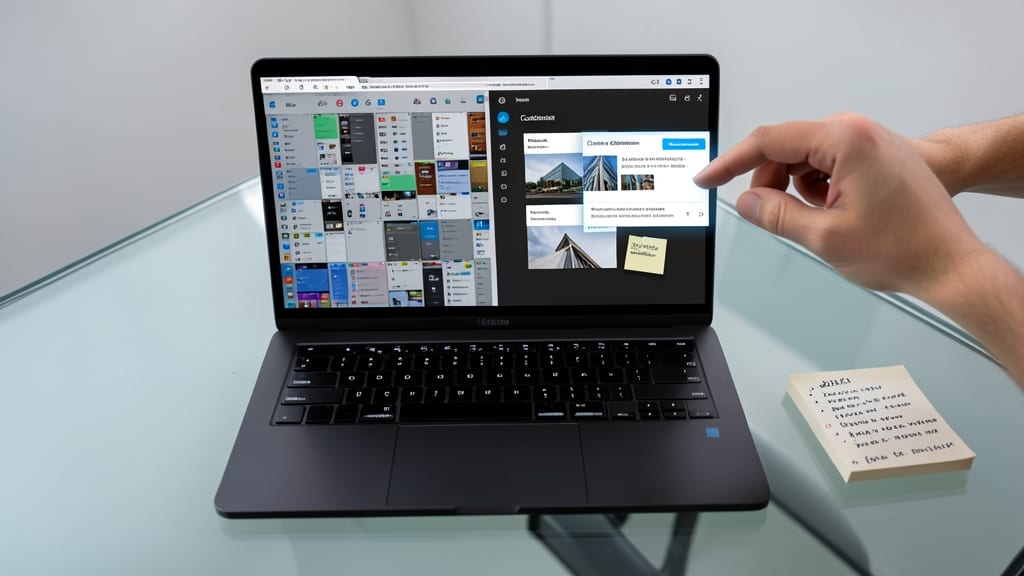
Drowning in open tabs while researching? Microsoft Edge’s Collections feature turns chaos into order—let you save web pages, images, and notes in seconds with a single click.
Simply highlight text, right-click, and select "Create a Collection" to instantly capture content. Add sticky notes, drag images directly from search results, and organize everything into customizable folders. When you’re done, export your research as a Word document or PDF with one click—no manual copying or formatting required.
Perfect for students compiling sources or professionals curating client references, Collections keeps everything searchable and accessible without the tab clutter. 💡
Customize startup pages with vertical tabs
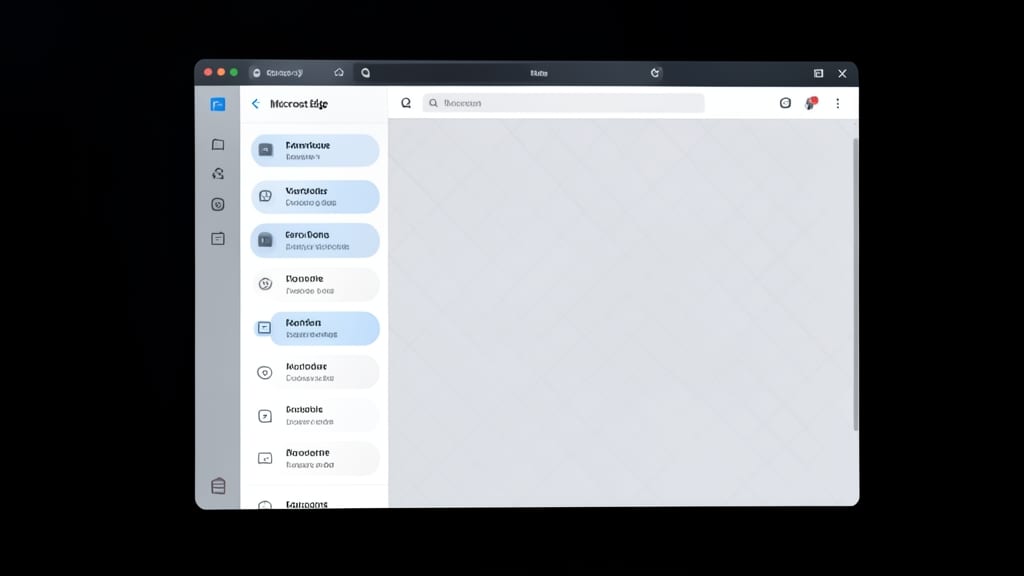
Tired of scrolling through endless horizontal tabs every time you launch Edge? The vertical tabs feature turns your startup page into a sleek, space-saving sidebar that keeps your most-used sites just a click away—no more digging through cluttered rows.
Enable it in Settings > Appearance under "Tabs," then customize which sites appear on startup. The layout automatically adjusts to fit your screen, and you can pin favorites for instant access. Perfect for developers juggling docs, designers switching between tools, or anyone who hates tab overload.
Multitaskers will love how this zero-config setup declutters your workspace while keeping essential links visible at all times. 💻
Block distracting websites with Focus Mode
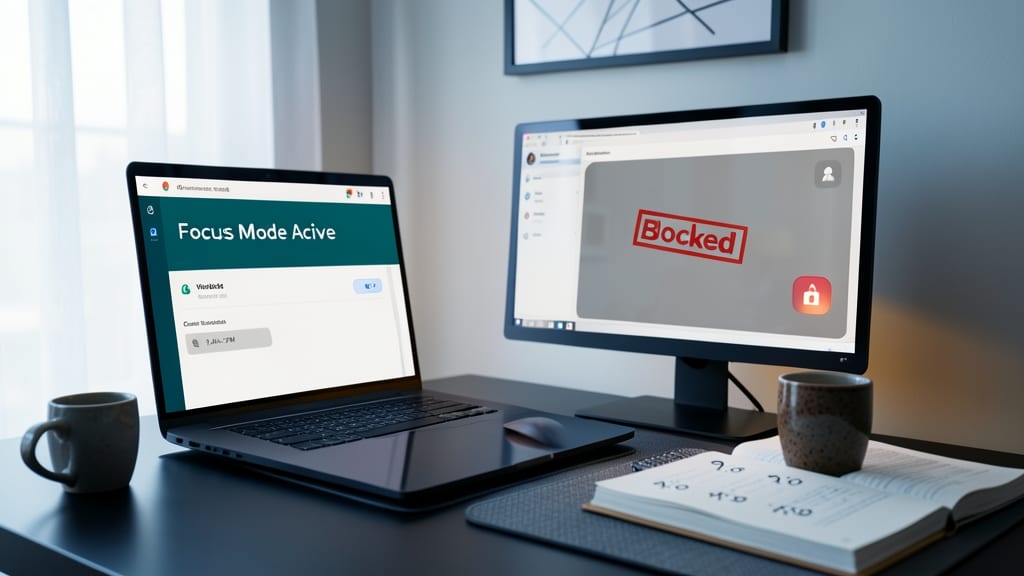
Struggling to focus during work or study? Microsoft Edge’s Focus Mode acts like a digital do-not-disturb, letting you whitelist only the sites you need while blocking time-wasters like social media or news outlets.
Set up custom schedules (e.g., 9 AM–5 PM) and add a password lock to prevent accidental deactivation. The mode even syncs across devices, so your focus stays intact whether you’re on your laptop or tablet. With zero extensions or third-party tools required, it’s the simplest way to enforce digital boundaries.
Perfect for writers, developers, and remote workers, Focus Mode turns your browser into a productivity fortress. No more willpower battles—just uninterrupted work. ✨
Speed up searches with Bing Image Creator
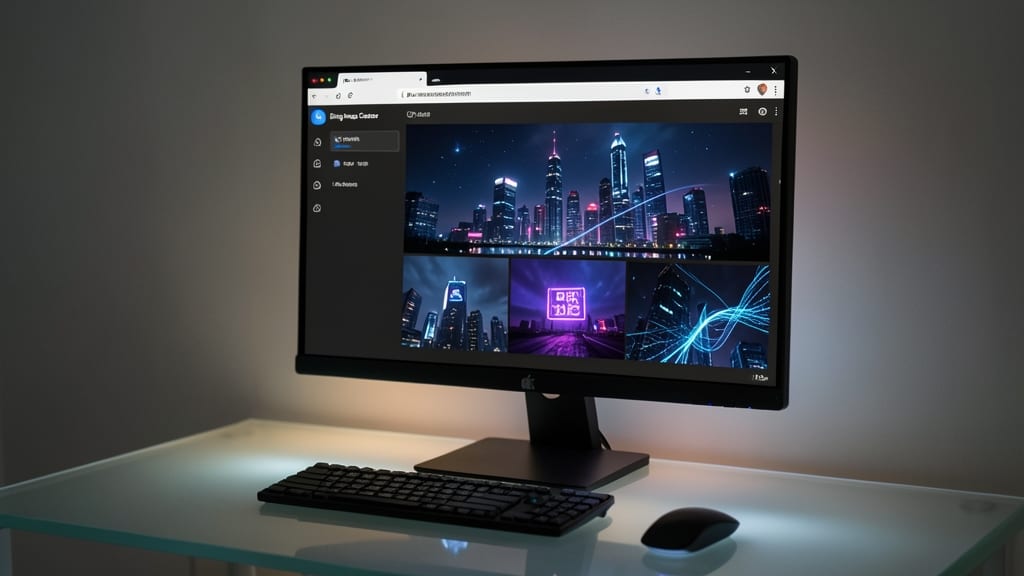
Tired of spending hours searching for the perfect stock image? Bing Image Creator in Microsoft Edge lets you generate AI-powered images directly from your search bar—no external tools required. Simply type a descriptive query (e.g., "cyberpunk cityscape" or "minimalist workspace"), and Edge delivers high-quality, custom visuals in seconds.
The best part? You get zero-config integration with Edge’s search flow, DALL·E-powered models for photorealistic or artistic styles, and commercial-use rights for most creations. Whether you need illustrations for a blog post or mockups for a design project, this tool cuts your workflow time by 70%—all while keeping your creative process seamless and browser-based.
Bloggers and designers will love how this eliminates the back-and-forth of stock photo sites. Just generate, download, and use—no attribution hassles. ⚡
Enable hardware acceleration for smoother performance
Struggling with choppy video playback or sluggish animations on your older PC? Microsoft Edge’s hardware acceleration feature can be your savior by offloading heavy tasks to your GPU instead of overworking your CPU.
To enable it, head to Settings > System > Performance and toggle Hardware Acceleration to On. This setting dramatically improves 4K video playback, reduces buffering, and smooths out animations—especially on systems with integrated graphics. Just ensure your GPU drivers are up to date for best results.
This tweak is a game-changer for streamers, video editors, and casual users on mid-range hardware. Give it a try—your browser (and your eyes) will thank you! ⚡
Sync passwords across devices securely
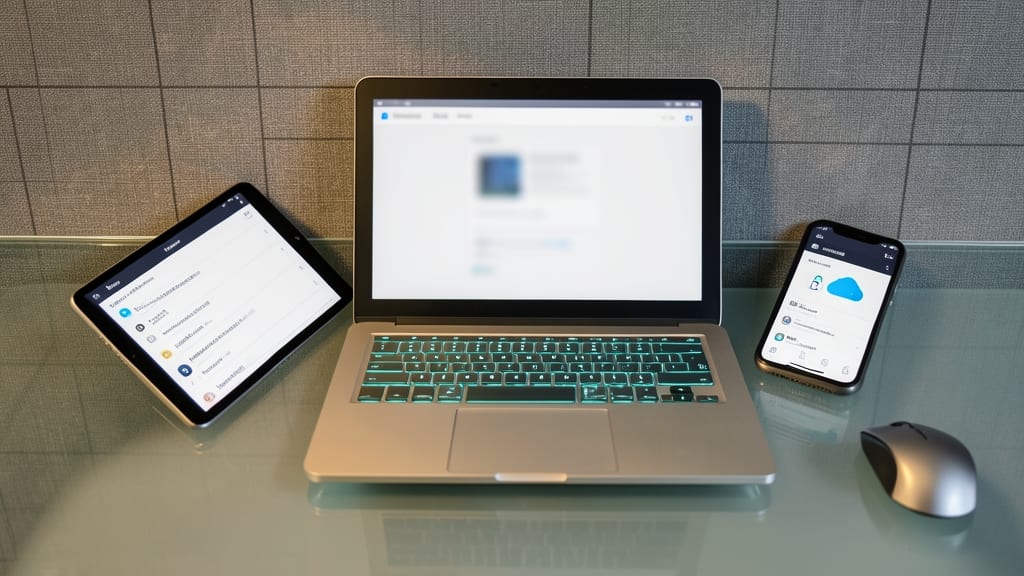
Tired of typing passwords on every device? Microsoft Edge’s built-in password manager syncs credentials across all your synced devices—encrypted end-to-end—so you log in instantly while keeping your data secure. No third-party apps needed.
With zero-configuration setup, your saved passwords auto-fill on laptops, tablets, and phones. The manager even flags weak passwords and suggests stronger ones. Plus, biometric authentication (fingerprint/face ID) adds an extra layer of security for quick access.
This is a game-changer for frequent travelers or anyone juggling multiple devices. Your logins stay private, yet always at your fingertips—no more password fatigue. ✨