
Tip & Trick
Mastering keyboard shortcuts can transform your typing speed and efficiency. These 10 underused symbols starting with 'A'—from accented letters to special characters—will unlock hidden productivity features across Windows, Mac, and Linux systems.
Accented Letters: À, Á, Â, Ã, Ä
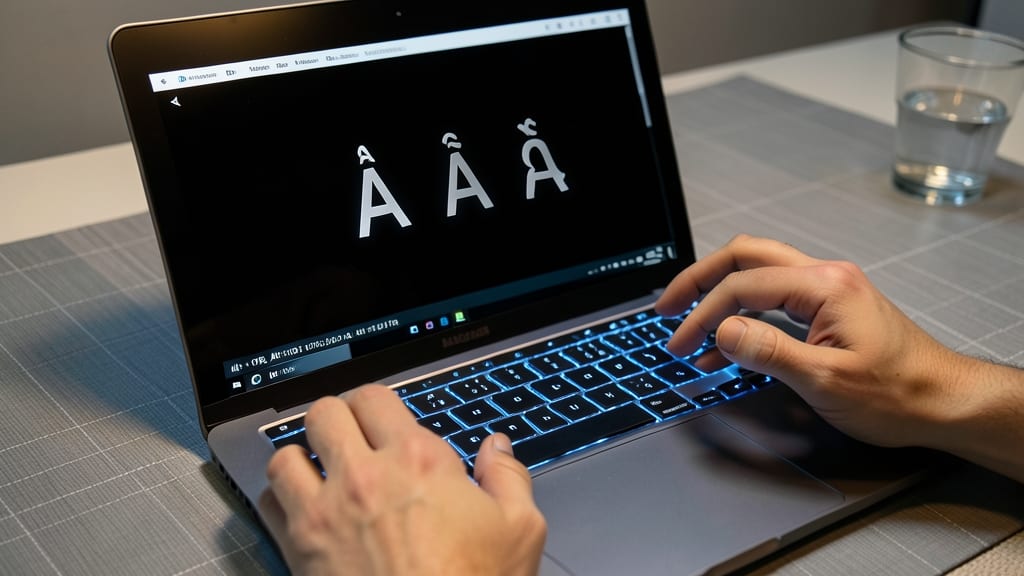
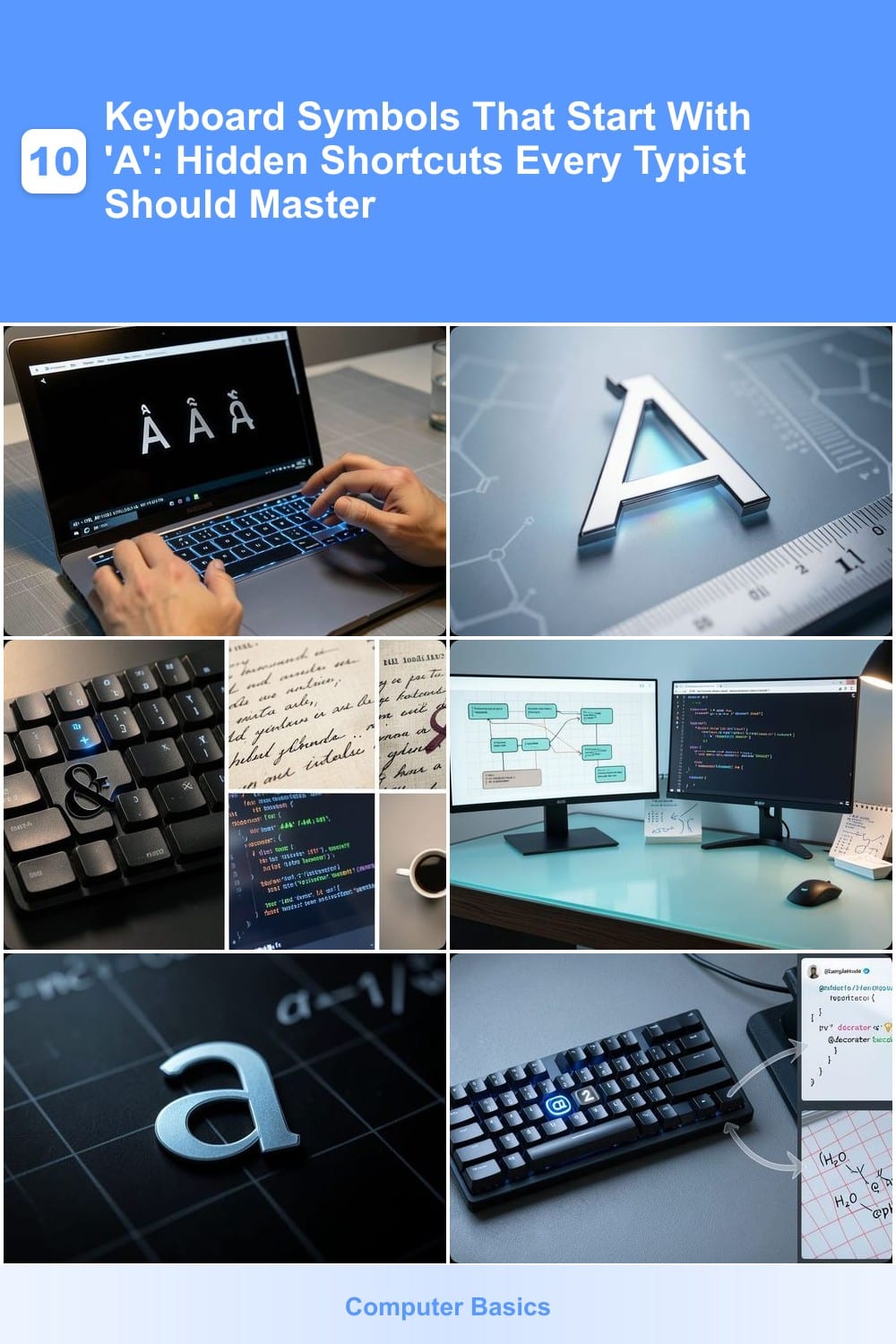
Writing in French, Spanish, or German just got easier with these accented letters—À, Á, Â, Ã, and Ä. Whether you're drafting emails, translating documents, or coding in a multilingual environment, these characters are essential for accuracy and readability.
On Windows, use Alt codes (e.g., Alt + 0192 for À) or dead keys like the tilde (~) or grave (`) on most keyboards. Mac users can press Option + E before typing the base letter (e.g., Option + E + A = É). For Linux, check your keyboard layout settings or use Compose Key shortcuts like Compose + ' + A for Á. These methods ensure seamless integration into any document or codebase.
Perfect for students, translators, and developers working with international text, these symbols bridge language gaps effortlessly. ⚡
Angstrom Symbol (Å)

Need a symbol that speaks volumes in precision? The Angstrom (Å)—representing 0.1 nanometers—is the go-to unit for atomic-scale measurements in physics, chemistry, and engineering. Whether you're annotating crystal lattice structures or calibrating semiconductor equipment, this symbol ensures clarity in technical documentation.
Type it easily via Alt + 0197 on Windows or Option + Shift + A on Mac (Unicode U+00C5). In LaTeX, simply use \AA for seamless integration into research papers. Its clean, minimalist design makes it ideal for diagrams where space and accuracy matter most.
Perfect for material scientists, nanotechnologists, or anyone working with microscopic scales, the Å symbol bridges the gap between abstract theory and tangible precision. ⚡
Ampersand (&)
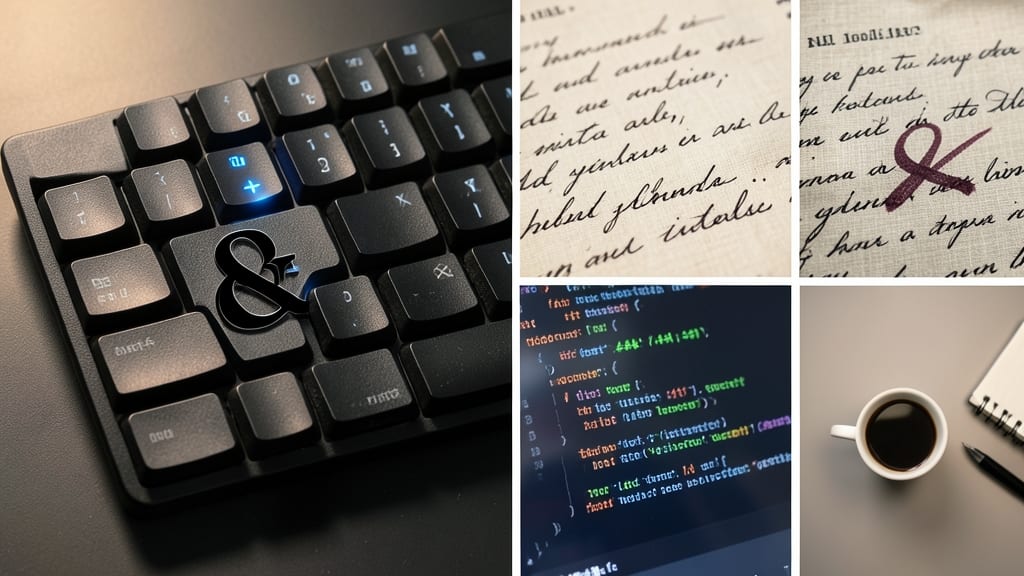
The ampersand (&) isn’t just a throwback to old-school typography—it’s a powerhouse symbol in legal drafting, programming, and even creative social media branding. From contracts to hashtags like #TechAndTips, this symbol packs versatility into a single keystroke.
On most keyboards, press Shift + 7 for the classic ampersand. In HTML, it’s written as & to avoid breaking code, while in LaTeX, it’s \&. Developers use it in regex patterns (e.g., .&.) and JSON paths (e.g., $.items[0].name&sort=asc). For social media, combine it with letters to create unique hashtags like #CodeAndCoffee—stand out while keeping it scannable.
Perfect for lawyers, developers, and marketers, the ampersand’s dual role as a connector and placeholder makes it a hidden gem in any typist’s toolkit. ✨
Arrow Symbols: ← → ↑ ↓
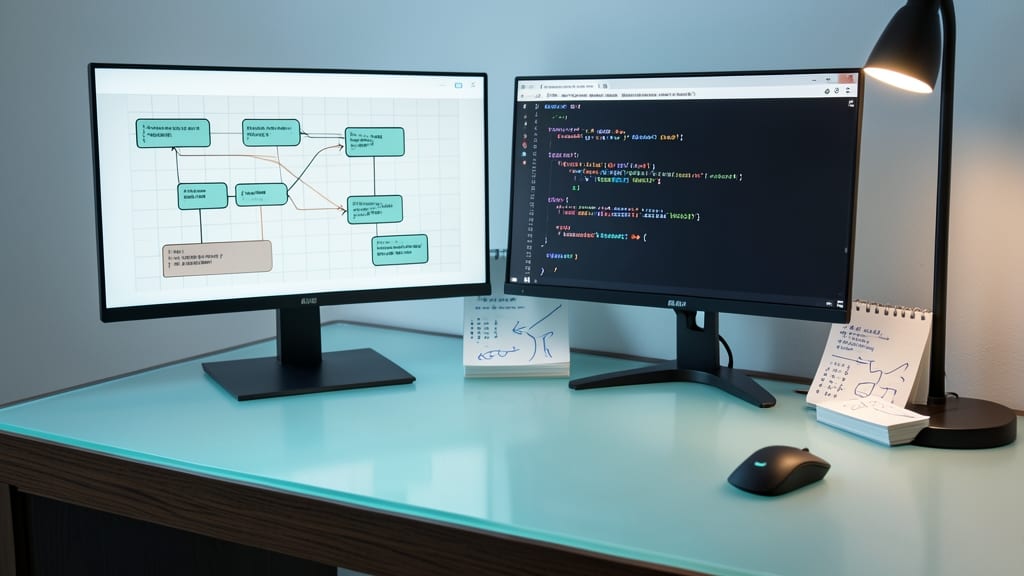
Need to create flowcharts, annotate diagrams, or write code with directional cues? The arrow symbols (← → ↑ ↓) are your secret weapon—easily typed via Alt codes (219, 220, 221, 222) or Unicode shortcuts.
These symbols aren’t just for presentations. Developers use them in pseudocode, UX designers in wireframes, and even gamers in chat commands. The double-headed arrow (↔) (Alt+214) is especially useful for bidirectional references.
Perfect for anyone who needs precise, professional-looking direction markers—no drawing skills required! ✨
Alpha Symbol (α)
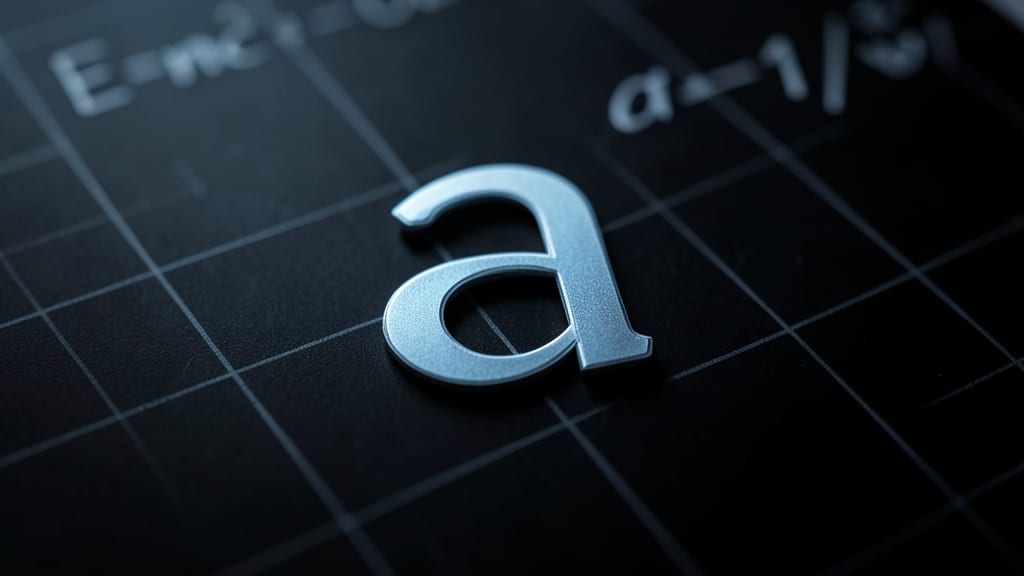
The alpha symbol (α) isn’t just a letter—it’s the foundation of Greek notation in math, physics, and engineering. Whether you’re writing equations, labeling variables, or referencing scientific papers, this symbol is everywhere but often overlooked in basic typing guides.
On Windows, type α using the Alt code 945 (hold Alt, type 945, release). Mac users can press Option + Shift + A for lowercase or Option + A for uppercase (Α). Unicode lovers can copy-paste it directly from character maps or use U+03B1 for lowercase. It’s also the first letter in the Greek alphabet, making it essential for coding algorithms or labeling datasets.
Perfect for students, researchers, or anyone working with LaTeX, Python (e.g., α = 0.05 for significance levels), or physics formulas. Master this shortcut to save time and add precision to your work. ✨
At Symbol (@)
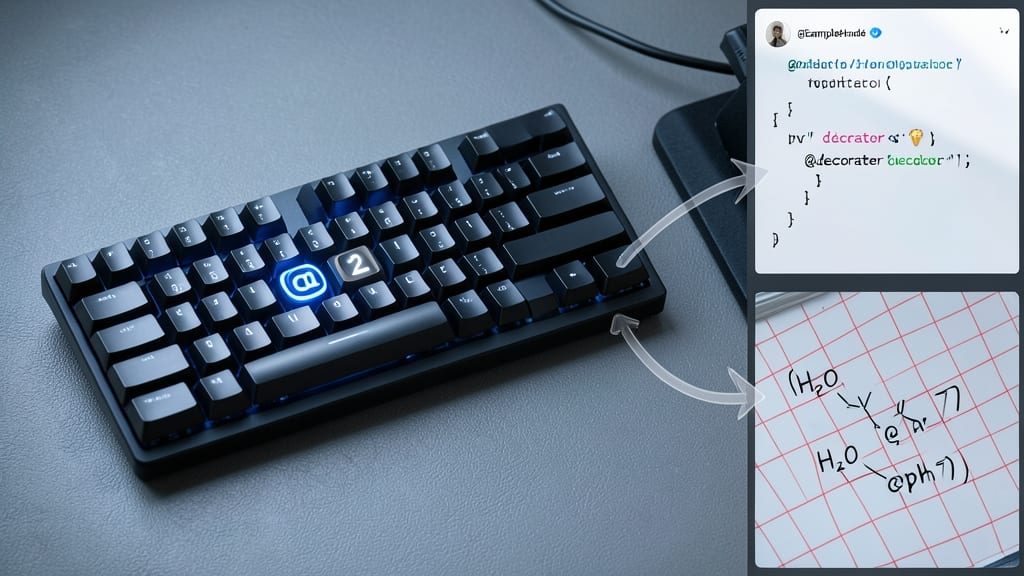
The @ symbol isn’t just for emails—it’s the backbone of social media handles, programming decorators, and even chemical notation. Whether you’re tweeting, debugging, or labeling compounds, this versatile symbol deserves a shortcut in your typing arsenal.
On most keyboards, press Shift + 2 for the @ symbol, but power users can also use Alt + 64 (Windows) or Option + K (Mac). In programming, it marks decorators in Python or package imports in JavaScript, while chemists use it for electron configurations (e.g., 1s² 2s² 2p⁶).
Developers and writers will love how this symbol bridges digital communication and technical precision—no more hunting through special character menus. ⚡
Asterisk (*) and Alternate Forms
The asterisk (*) is the ultimate multitasker—whether you're marking footnotes, denoting multiplication, or searching for wildcards in code. But did you know it has a stylish cousin? The asterisk with a dot (✱) adds a decorative flair to designs while keeping the same core function.
Typing the standard asterisk is easy—just press Shift + 8 on most keyboards. For the Unicode dot-asterisk (✱), use Alt + 8259 on Windows or Option + 8 on Mac. In programming, asterisks handle everything from string replacements in regex to declaring pointers in C. The dot variation shines in logos or creative projects where a subtle twist makes a difference.
Developers and designers will love the flexibility, while casual users can spice up documents with a touch of elegance. Try swapping one for the other in your next project—your text will thank you! ✨
Alt Codes for Special Characters
Need to type ª (feminine ordinal) or º (masculine ordinal) for legal documents, coding, or creative projects? Windows and Mac users can generate these—and many more—using simple Alt codes or Option key combos without switching layouts.
On Windows, hold Alt, type 0170 (for ª) or 0176 (for º), then release Alt. Mac users can press Option + Shift + 9 for ª or Option + 0 for º. These shortcuts work for 160+ special characters, including ©, ®, and ™, making them perfect for developers, designers, or anyone crafting polished documents.
Ideal for legal templates, programming annotations, or branding materials, these codes save time and ensure consistency across platforms. ⚡
Alveolar Arch (ɑ)
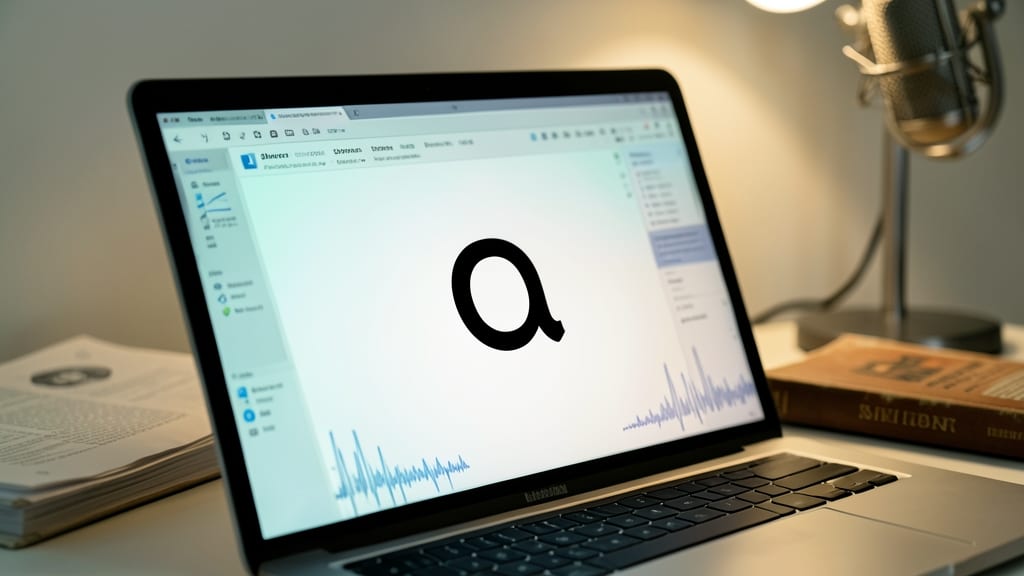
If you’re diving into linguistics or speech analysis, the alveolar arch (ɑ) might just be the unsung hero of your toolkit. This symbol represents a specific vowel sound in phonetics, often used in academic papers, speech recognition software, and linguistic databases.
Typing it is straightforward: use the Unicode shortcut Alt + 8993 on Windows or Option + Shift + A on Mac. It’s also available in most IPA (International Phonetic Alphabet) fonts, making it ideal for transcribing speech or annotating audio files. Linguists and AI researchers working with voice models will find it indispensable for precision.
Perfect for students writing theses or professionals designing speech synthesis tools, this symbol bridges the gap between theory and real-world applications. ✨
Angled Quotes (« »)
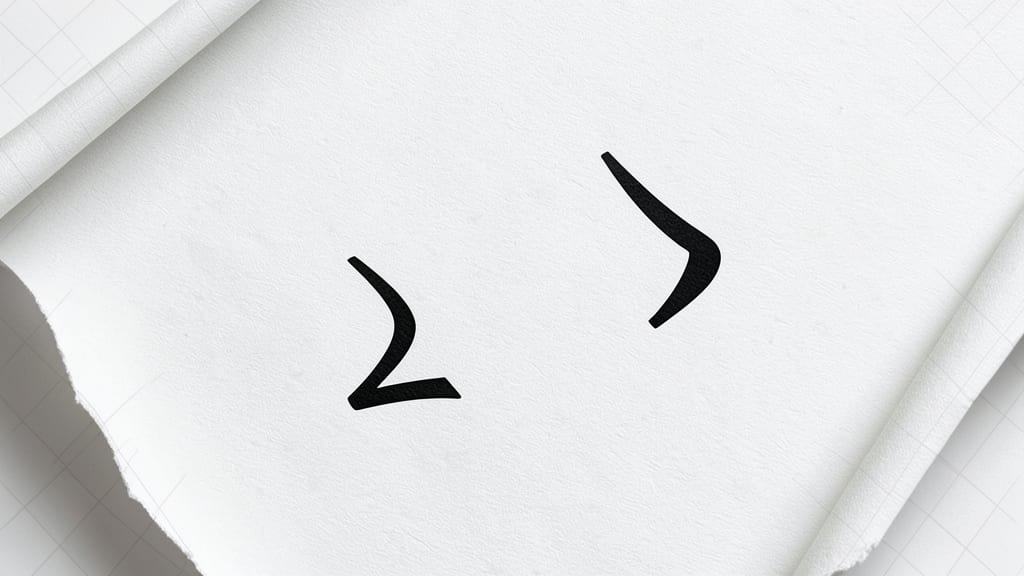
Ever noticed how high-end magazines and legal documents use those elegant, slanted quotation marks instead of plain straight ones? Those are angled quotes (« »), the gold standard for typography in professional writing, publishing, and design.
Unlike basic straight quotes ("), angled quotes (Unicode U+00AB and U+00BB) create a refined, traditional look that’s instantly recognizable. They’re automatically applied in tools like Microsoft Word (via "Smart Quotes" settings) and Adobe InDesign, while LaTeX users can enable them with \textquotedblleft and \textquotedblright. For manual typing, use Alt+0171 (left) and Alt+0187 (right) on Windows or Option+[ and Option+] on Mac.
Graphic designers and editors swear by them for brand consistency—think of them as the secret weapon for documents that need to look premium. Whether you're formatting a thesis, designing a brochure, or just want your tweets to look sharper, these quotes add instant polish. ✨