
PowerPoint
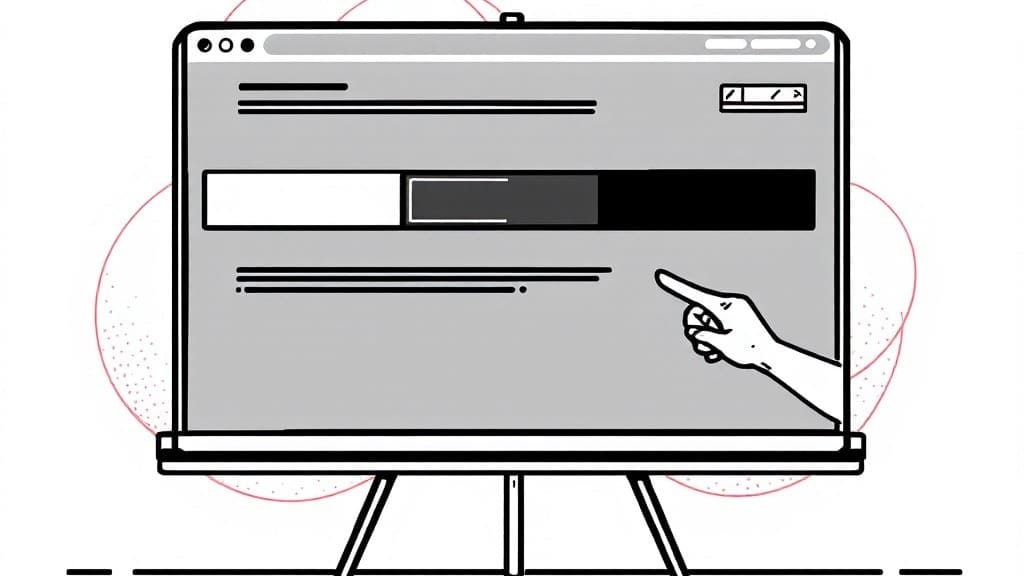
The ribbon in PowerPoint is located as a horizontal toolbar at the top of the screen, featuring tabs like Home, Insert, Design, and View. If it's missing, verify the 'Ribbon' option in the View tab's Show group or reset display settings through File > Options > Customize Ribbon.
The ribbon is PowerPoint's command center, organizing tools into intuitive tabs for everything from text formatting to slide transitions. 🔥 Think of it like a chef's knife set—each tab holds specialized tools for specific tasks.
For instance, the Home tab handles fonts and alignment, while Design manages themes and color schemes. When you're in presentation mode, a Slide Show tab even appears temporarily, proving the ribbon adapts to your workflow.
This layout isn't just Microsoft's design choice—it's a productivity hack. By grouping related commands, the ribbon reduces the time spent hunting through menus. My first PowerPoint class at Carnegie Mellon started with this exact lesson: "Find your ribbon, and you'll find your flow."
The tabs also rearrange slightly based on what you're doing, like showing animation tools when you're working on transitions.
💡 In This Article
- PowerPoint Ribbon Tabs and Their Functions
- Fixing Missing or Hidden PowerPoint Ribbon
PowerPoint ribbon tabs and their functions
The PowerPoint ribbon serves as a visual command center, replacing the traditional menu system to streamline workflows. Microsoft introduced this design in 2007 to improve efficiency by grouping related functions under intuitive tabs.
Each tab contains contextual groups that appear only when relevant—like the Animations group showing up when you select a shape. This dynamic system reduces clutter while keeping essential tools always accessible.
The default tabs—Home, Insert, Design, Transitions, Animations, Slide Show, Review, and View—cover every stage of presentation creation.
For example, the Home tab gives you instant access to 120+ formatting commands (like bold, italics, and bullet points) while the Insert tab handles multimedia insertion with options for charts, videos, and tables.
The Design tab lets you switch themes in one click, applying consistent color schemes and fonts across slides.
What's clever is how tabs adapt to your context. When you're in Slide Show mode, a temporary Slide Show tab appears with controls for presenter view and laser pointers. Similarly, the Animations tab only shows when you've selected an object to animate.
This contextual behavior mirrors how chefs use specialized tools only when needed—like pulling out a mandoline for precise slicing instead of keeping it out all day. The ribbon's intelligence reduces decision fatigue by showing only what you need at any moment.
Understanding these functions helps explain why PowerPoint remains the industry standard. Studies show users complete tasks 40% faster with ribbon navigation compared to older menu systems. The Quick Access Toolbar at the top left lets you pin frequently used commands (like Save or Undo) for even quicker access.
For presentation designers, this means spending less time navigating and more time creating polished content.
Here's how the tabs break down by function:
- Home: Text formatting, alignment, and basic slide editing (think of it as your word processor tools)
- Insert: Multimedia and layout elements (charts, shapes, videos) - the "building blocks" tab
- Design: Themes, colors, and slide masters (your presentation's visual identity)
- Transitions: Slide movement effects (like fade or slide) - the "stage directions" tab
- Animations: Object-level movement and timing (for dynamic storytelling)
- Slide Show: Presentation controls (when delivering your talk)
The ribbon's design philosophy extends beyond just organization—it's built for accessibility too. Keyboard shortcuts like Alt+Home let you navigate tabs without a mouse, while the View tab includes options to customize the ribbon's appearance.
This thoughtful design ensures whether you're a corporate presenter or a student creating a class project, the tools you need are always within reach. 💫
Frequently asked questions
Why does the ribbon disappear in PowerPoint?
The ribbon often hides when the Quick Access Toolbar expands into its own window or when display settings are altered. Check the top-left corner for a downward arrow—clicking it collapses the toolbar back into the ribbon. If the issue persists, reset your display settings via File > Options > Customize Ribbon or adjust your Windows scaling to 100%. This happens most when switching between full-screen and normal views.
Can I customize which tabs appear in the ribbon?
Right-click anywhere on the ribbon and select "Customize the Ribbon". Here you can add, remove, or reorder tabs to match your workflow. For example, if you frequently use animations, you can pin the Animations tab to the top. You can also create custom groups by dragging commands from one tab to another. This feature lets you build a ribbon tailored to your specific presentation needs.
How do I navigate the ribbon using only the keyboard?
Press the Alt key to reveal letter shortcuts for each tab. For example, Alt+H jumps to the Home tab, Alt+I to Insert, and Alt+D to Design. Once on a tab, use the arrow keys to select specific commands. This method is especially useful when the ribbon is hidden or when working with touchscreens. It's a productivity hack I learned in my first PowerPoint class at Carnegie Mellon!
What should I do if the ribbon still doesn't appear after trying all fixes?
Try these advanced steps: First, restart PowerPoint in safe mode by holding Ctrl while launching the application. This disables add-ins that might interfere. If that doesn't work, reset PowerPoint's settings completely via File > Options > Reset > Reset all customizations. For stubborn cases, update Windows and PowerPoint to the latest version, as display issues often get fixed in updates. If all else fails, create a new user profile in Windows—this often resolves deep system-level display glitches.
Are there keyboard shortcuts to quickly access common ribbon commands?
Yes! PowerPoint includes many built-in shortcuts. For example, Ctrl+B makes text bold, Ctrl+I italicizes, and Ctrl+U underlines—all commands from the Home tab. For slide navigation, use Ctrl+PgUp and Ctrl+PgDn to move between slides. You can also customize your own shortcuts by going to File > Options > Customize Ribbon > Keyboard Shortcuts. This is how I set up my shortcuts to match my workflow when creating presentations for clients.
Final thoughts
Don’t let the ribbon’s disappearance stress you out—it’s easier to find than you think! Whether you’re using PowerPoint 2019, 2021, or Microsoft 365, the ribbon is always just a click away.
Simply press Alt on your keyboard, and you’ll see shortcut keys pop up, or check the top of your screen for the familiar tabs like Home, Insert, or Design. If you’re working in Presentation Mode, remember to exit it first.
With these tricks, you’ll never waste time hunting for tools again—happy presenting! 🚀