
PowerPoint
Struggling to make your PowerPoint presentations more dynamic? These seven transition effects will elevate your slideshows from boring to breathtaking, ensuring smooth flow and audience engagement without overwhelming technical complexity.
Fade Transition for Professional Elegance

Need a transition that feels refined yet effortless? The Fade effect in PowerPoint delivers subtle sophistication without distracting from your message—perfect for boardrooms and client meetings where polish matters.
Available in all modern versions (2016, 2019, and 365), this transition smoothly dissolves one slide into the next, maintaining a clean, distraction-free flow. You can adjust the speed (from slow to fast) and even add a sound effect (like a soft chime) for extra professionalism. It’s also universally compatible, working seamlessly across Windows, Mac, and online versions.
This is the go-to choice for executives, trainers, and educators who prioritize clarity and professionalism. Use it for financial reports, corporate training, or any presentation where elegance keeps the focus squarely on your content. ✨
Push Transition for Dynamic Movement
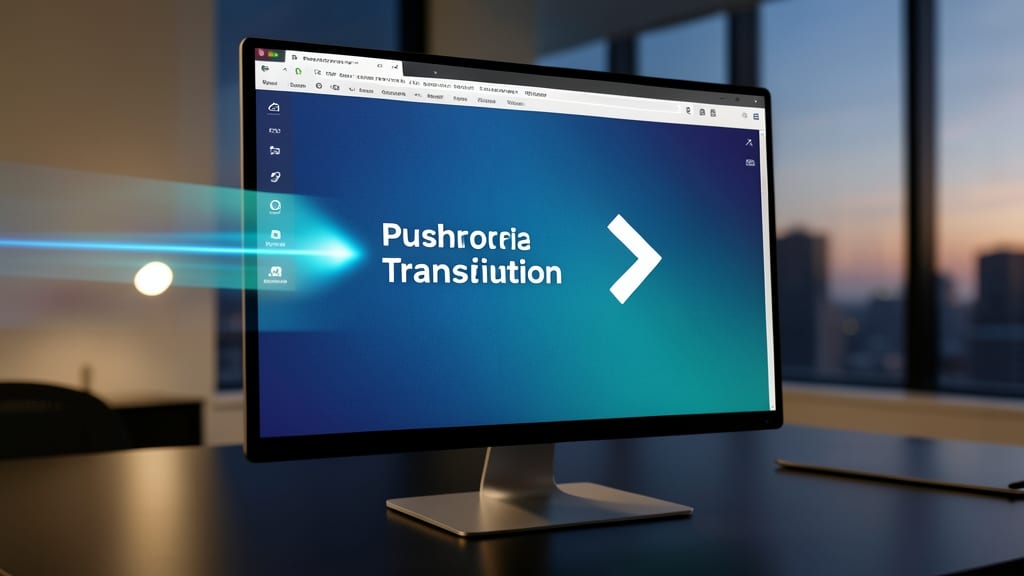
Need to make your slides feel like a journey rather than a static lineup? The Push Transition injects motion and momentum into your presentation, sliding content left or right with a sharp, directional flow that feels intentional.
Available in PowerPoint 2016, 2019, and 365, this effect works best with speed settings between 1.0–2.5 seconds to avoid overwhelming audiences. The directional control (left/right) lets you visually guide viewers through processes—like a timeline or workflow—where each step builds logically. Pair it with sound effects (if enabled) for extra emphasis on key moments.
Perfect for educators breaking down complex topics, marketers showcasing product evolution, or anyone crafting a narrative that needs to feel dynamic. ⚡
Wipe Transition for Clean Visual Breaks
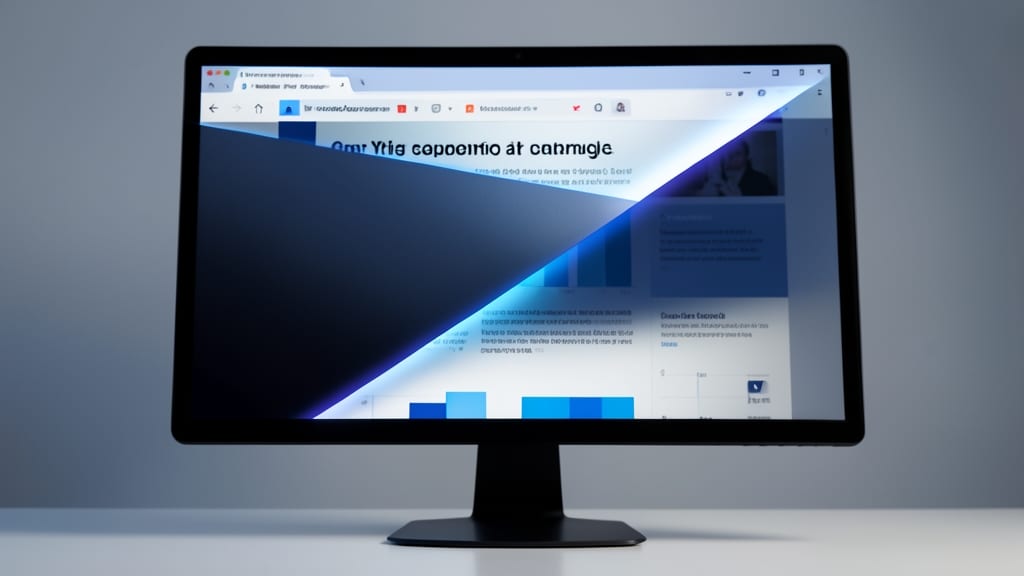
Tired of transitions that blend slides together too smoothly? The Wipe Transition delivers a bold, crisp visual break that signals a deliberate shift in content—perfect for presentations where structure matters.
Available in horizontal, vertical, or diagonal directions, this effect creates a clean dividing line that instantly separates sections like agendas from case studies or before-and-after comparisons. Unlike fade or push transitions, it doesn’t blend slides—it visually slices them, ensuring your audience knows when a new topic begins. Works seamlessly in PowerPoint 2016, 2019, and 365 with zero compatibility issues.
Ideal for analytical reports, training modules, or client pitches where clarity outweighs flash. Use it to highlight transitions between data-heavy slides and visual summaries—your audience will thank you for the focus. ✨
Zoom Transition for Impactful Highlights
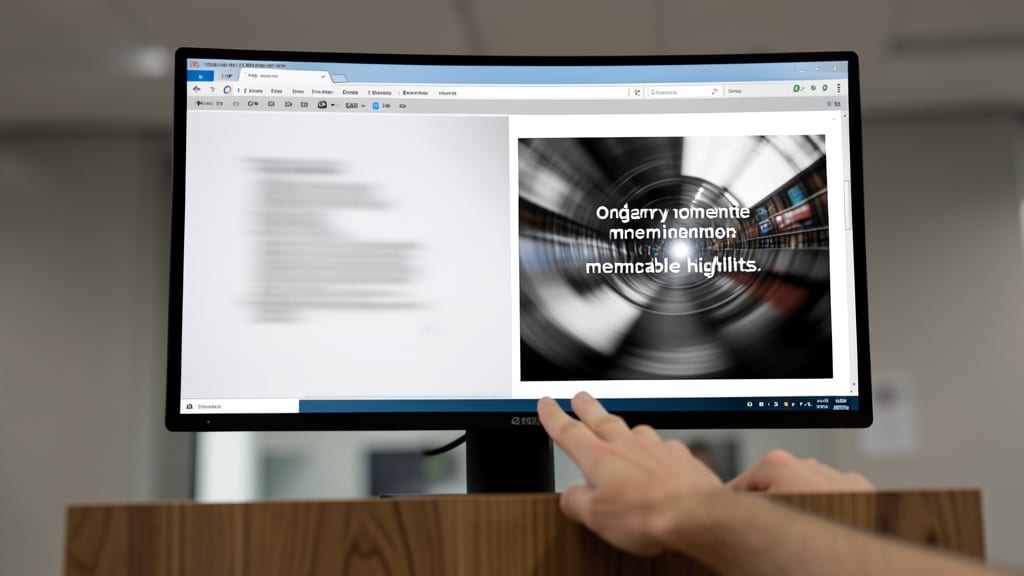
Need to make your audience lean in during a big reveal? The Zoom Transition delivers exactly that—dramatic focus by smoothly zooming into or out of slides, turning ordinary moments into memorable highlights.
Available in PowerPoint 2016 and later (including PowerPoint 365), this transition offers three presets: Zoom In, Zoom Out, and Zoom (for perspective shifts). Pair it with 3D effects or shadows to amplify the impact, and adjust the transition speed to control pacing. It’s especially effective when paired with bold visuals like product mockups or key data points.
Perfect for product launches, keynote speeches, or data-driven pitches, this transition ensures your audience won’t miss the big moments. Just don’t overuse it—save it for slides that demand attention! ✨
Morph Transition for Seamless Data Visualization
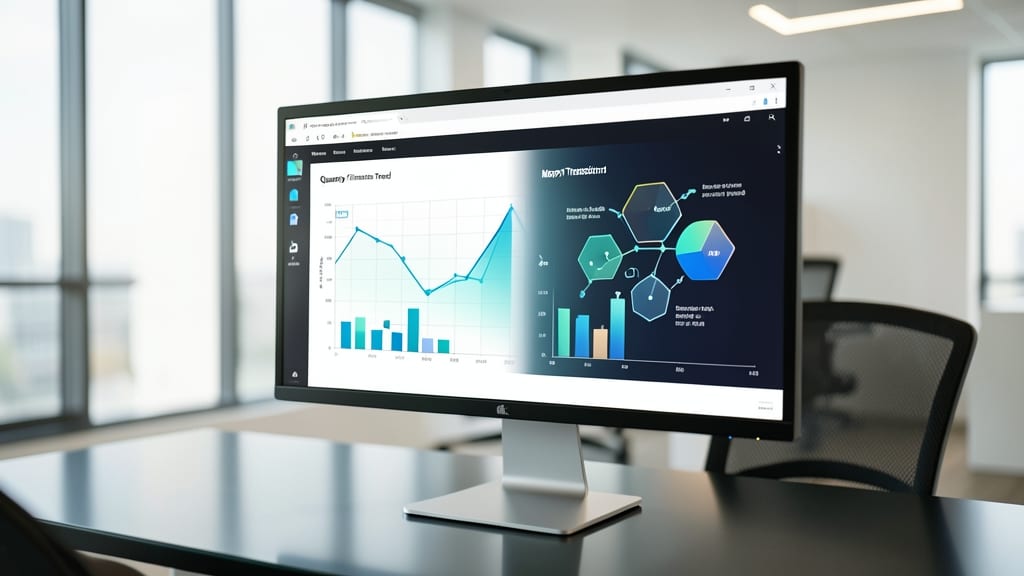
When your data tells a story of gradual shifts—like quarterly financial trends or evolving infographics—you need a transition that mirrors that evolution. The Morph Transition in PowerPoint (available in 2016, 2019, and 365) lets shapes, charts, and text fluidly transform into one another, preserving context while guiding the eye through changes.
This effect isn’t just visually striking; it’s purpose-built for analytics. For example, a bar chart can smoothly morph into a pie chart when shifting from raw data to percentage breakdowns, or a timeline can evolve into a roadmap without jarring cuts. The transition works best when slides share similar layouts—think data visualizations, comparative reports, or step-by-step processes where continuity matters.
Perfect for analysts, educators, or marketers presenting complex data, the Morph Transition keeps audiences focused on insights—not the mechanics of the slide change. Just ensure your source and target slides align closely for the smoothest results. ✨
Slide Transition with Sound for Engagement
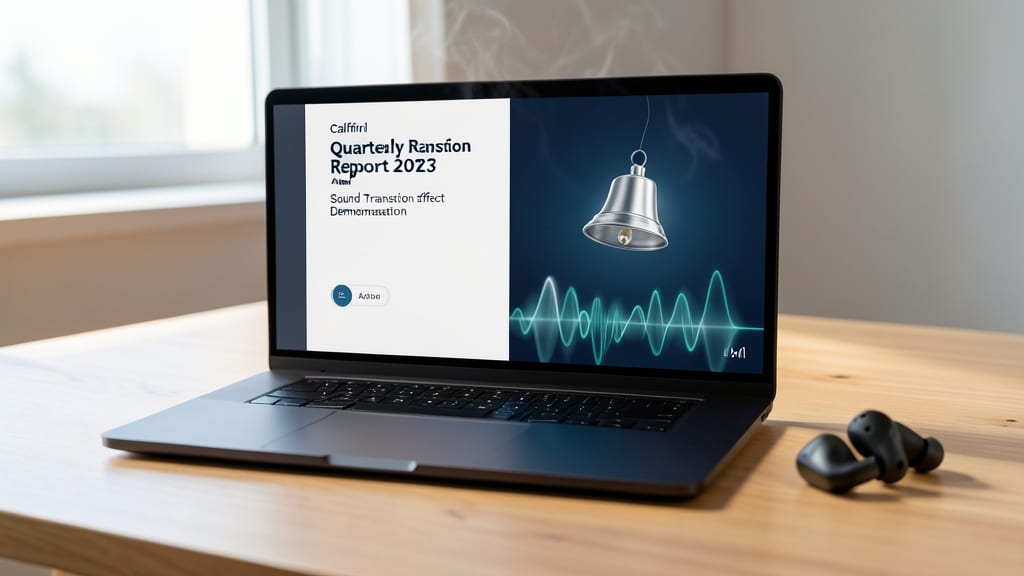
Ever wished your PowerPoint slides could speak to your audience? The Sound Transition effect adds auditory cues—like gentle chimes, clicks, or even custom audio—to keep viewers engaged without overwhelming them. It’s the perfect tool for breaking monotony in creative pitches, educational content, or casual presentations where subtle interaction makes a difference.
Available in PowerPoint 2016 and later, this feature lets you pair transitions with preloaded sound effects (e.g., "Beep," "Chord," or "Laser") or import your own MP3/WAV files. The timing syncs automatically, ensuring the sound plays at the exact moment the slide changes—ideal for reinforcing key moments without distracting from your message.
Teachers, designers, and marketers will love how this effect subtly retains attention during long presentations. Just be mindful of volume settings in shared environments! ✨
Custom Path Transition for Creative Freedom
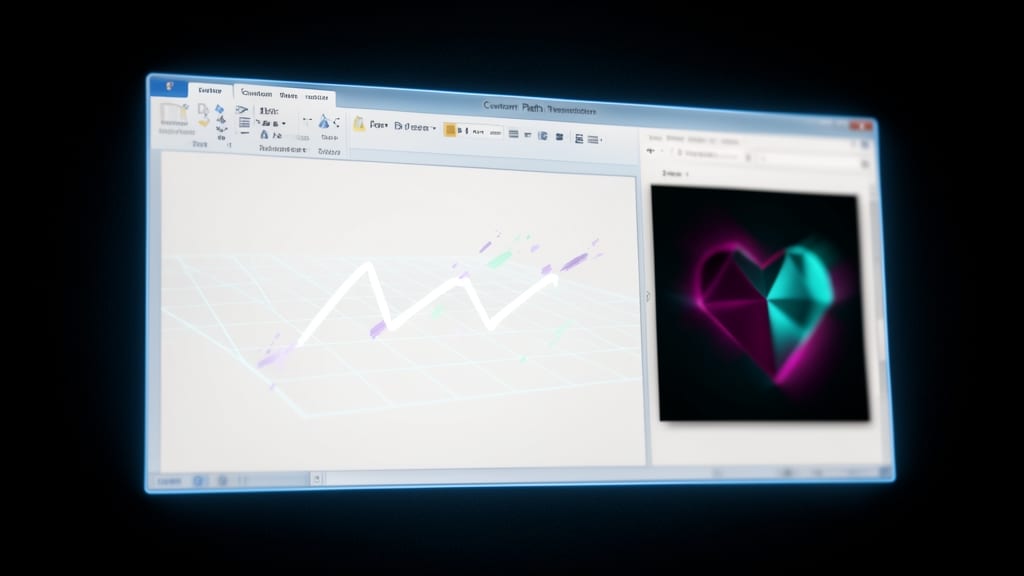
Want to make your audience feel like they’re on an unexpected journey? The Custom Path Transition in PowerPoint lets you draw your own transition routes—whether it’s a zigzag, spiral, or even a heart shape—breaking free from standard slide movements.
With this feature, you can define custom paths using the mouse or pen input (on touch-enabled devices), ensuring every transition feels unique. It’s perfect for non-linear storytelling, creative pitches, or artistic presentations where you want to surprise and engage your audience. The ability to tweak the path’s speed and direction gives you full creative control.
Ideal for designers, educators, or anyone crafting a memorable experience, this transition turns your slideshow into an interactive canvas. ✨