
Troubleshooting

IT support teams spend countless hours resolving common technical issues. These 10 knowledge base articles provide step-by-step solutions to frequently encountered problems, helping you troubleshoot faster and reduce repetitive inquiries.
Windows Login Screen Freezing Solutions
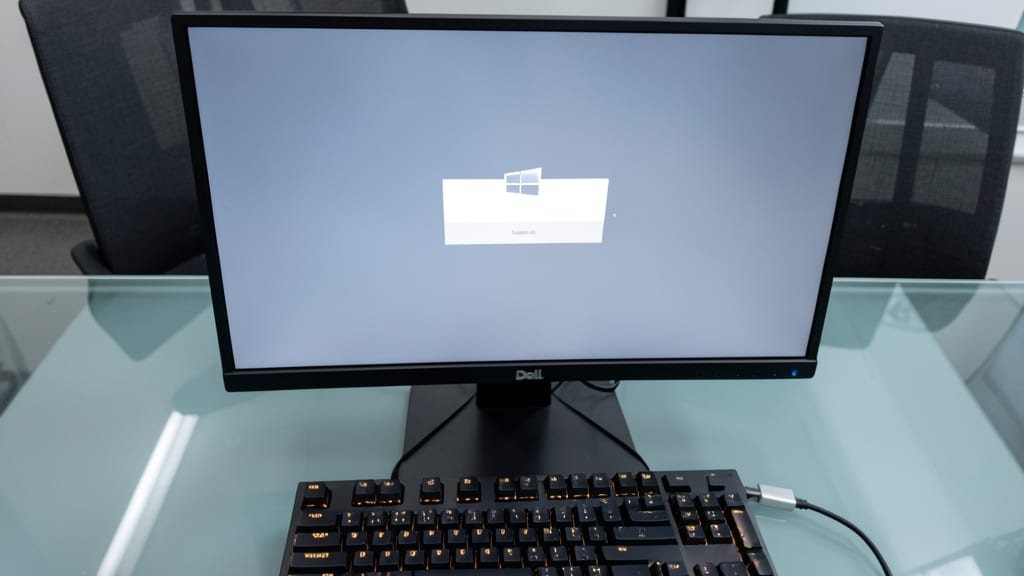
Stuck on the Windows login screen with no progress bar? This frustrating freeze wastes time—especially in enterprise environments where every minute counts. The root causes often lie in corrupted user profiles, outdated Windows updates, or conflicting driver versions, all of which can derail logins before they even begin.
Start by booting into Safe Mode (hold Shift while restarting) to rule out third-party drivers. Use System File Checker (sfc /scannow) to repair corrupted system files, then update drivers via Device Manager. For stubborn profile issues, create a new local account via the Windows Recovery Environment to isolate the problem. Microsoft’s Windows Update Troubleshooter can also resolve update-related hangs.
This solution is a lifesaver for IT admins managing fleets of devices or helpdesk teams fielding login-related tickets. A well-documented troubleshooting guide here cuts resolution time by 50%. ⚡
Microsoft Outlook Email Sync Errors

When Outlook’s sync icon spins endlessly but emails never update, it’s a productivity killer for your team. These sync errors—whether on desktop or mobile—often stem from corrupted OST/PST files, Exchange Server conflicts, or misconfigured account settings, leaving users stuck between outdated emails and frustration.
Start by repairing the OST file via File > Open & Export > Import/Export, then select Import from another program and choose the corrupted OST. For Exchange issues, verify server connectivity by testing with Microsoft’s Remote Connectivity Analyzer Tool. Mobile users should clear Outlook’s cache (Settings > Outlook > Storage) and re-add the account. Pro tip: Disable hardware graphics acceleration in Outlook’s advanced settings if sync hangs persist.
This guide is your go-to for office support teams dealing with Exchange-heavy environments or remote workers on unreliable networks. A battle-tested setup. ⚡
Slow Internet Connection Troubleshooting

When remote users complain about sluggish internet, your first instinct might be to blame their ISP—but 90% of connection issues actually stem from local hardware or misconfigurations. This structured troubleshooting guide helps you isolate problems quickly, even when working with non-technical users over the phone.
Start by verifying the ISP’s actual speeds using tools like Speedtest.net (compare results to advertised speeds). Then check for router bottlenecks—restart the modem/router, test with a wired Ethernet connection, or update firmware if the device is outdated. For device-specific issues, run a bandwidth-heavy test (e.g., streaming a 4K video) to see if the problem persists across all apps.
This method works best for remote support teams or IT admins managing mixed environments. By ruling out ISP issues first, you save time and avoid unnecessary escalations. 💻
Printer Driver Installation Failures
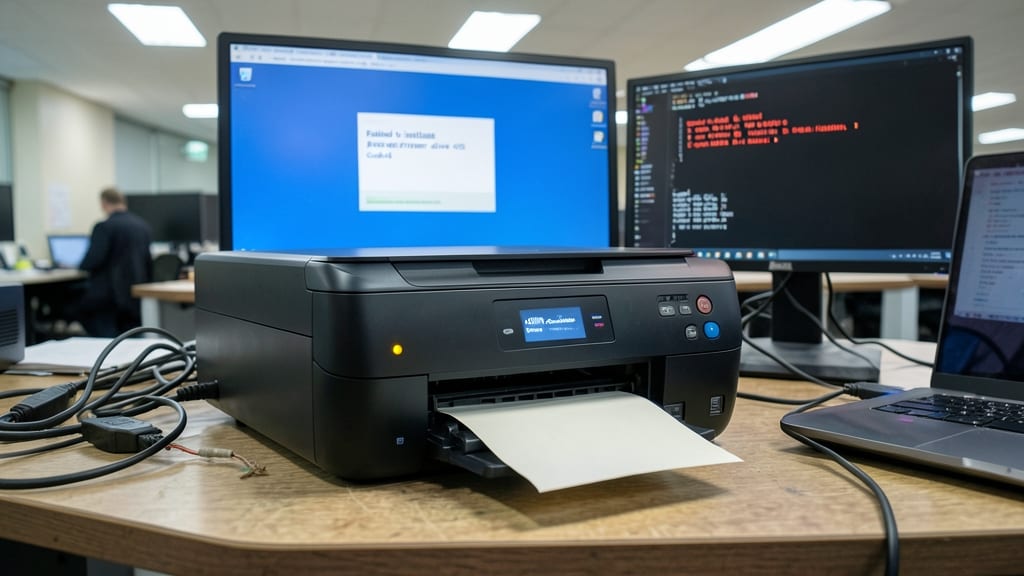
Shared office printers are the silent productivity killers—until they refuse to install drivers properly. Whether it’s a Windows 10/11 machine or Linux Mint/Ubuntu, driver conflicts and hardware detection failures waste hours of IT time that could be spent on higher-priority tasks.
Start by verifying the printer’s USB or network connection and using the manufacturer’s latest driver (often found on their support site). For Windows, run pnputil /delete-driver to remove corrupted drivers, then reinstall. On Linux, use lsusb to detect hardware and install drivers via apt or yum—or manually compile from source if needed. Always check for 32-bit vs. 64-bit mismatches, as these cause silent failures.
This guide is your lifeline for office environments where printers are shared across teams. A well-documented troubleshooting article here can cut down on repetitive calls and keep workflows running smoothly. 💻
MacBook Overheating Prevention Guide

Thermal throttling on MacBooks isn’t just annoying—it’s a productivity killer, especially in mixed-OS workspaces where Windows and macOS devices share the same support queue. Unlike Windows, macOS doesn’t always alert you to overheating until it’s too late, leaving users scrambling to diagnose the issue.
Start with physical maintenance: Use compressed air to clear dust from vents (a 10-minute job can restore airflow), and check for obstructions like thick cases or fabric covers blocking the fan. Software-wise, fan calibration tools like Macs Fan Control (free for older models) or SMC reset procedures (for newer chips) often fix stuck fans. For persistent throttling, reduce background processes—close unused apps or switch to low-power mode in Energy Saver settings.
This guide is your go-to for IT teams supporting creative professionals (video editors) or remote workers juggling multiple OS environments. A little proactive care keeps MacBooks running cool—and keeps your helpdesk tickets down. 💻
Chrome Browser Crashes and Freezes

When Chrome crashes with the dreaded "Aw, Snap!" or freezes mid-session, it’s often not your imagination—it’s usually a corrupted profile, a misbehaving extension, or hardware acceleration gone rogue. These issues plague both end-users and helpdesk agents, but the fixes are surprisingly simple once you know where to look.
Start by disabling extensions one by one (type chrome://extensions in the address bar) to isolate the culprit—many extensions like ad blockers or password managers are notorious for conflicts. Next, reset Chrome’s settings with chrome://settings/reset to clear corrupted preferences. For hardware acceleration, disable it in Settings > System > Hardware Acceleration and test again. If the problem persists, create a new Chrome profile (chrome://settings/manageProfile) to rule out profile corruption.
This guide is perfect for helpdesk agents fielding Chrome-related calls or end-users tired of losing work mid-session. A few clicks can save hours of frustration! ✨
Linux Permission Denied Errors

When a "Permission Denied" error halts your workflow in Linux, it’s often not just a file issue—it’s a system security feature gone wrong. Whether you're managing Ubuntu servers, CentOS deployments, or local dev environments, these errors demand precision. The fix isn’t one-size-fits-all; it’s about understanding chmod, chown, and SELinux contexts.
Start with chmod to adjust file permissions (e.g., chmod 755 script.sh for executable rights). For ownership issues, chown (e.g., chown user:group file.txt) restores control. But if SELinux blocks access, check contexts with ls -Z and restore defaults using restorecon. Pro tip: Always verify changes with getfacl for advanced ACLs.
This guide is your go-to for sysadmins and Linux support teams—where security isn’t optional, and permissions are the first line of defense. 💻
VPN Connection Drops and Latency
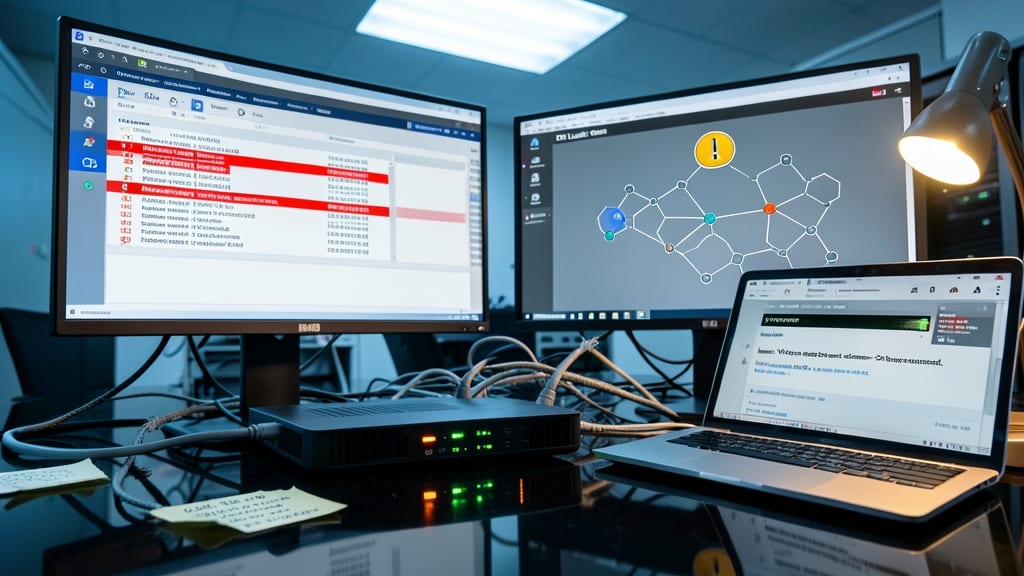
Frustrated by VPN connections that drop mid-call or slow down your workflow? The culprit is often firewall misconfigurations, DNS leaks, or even the wrong protocol for your needs. These issues plague remote workers and corporate IT teams more than you’d think—especially when deadlines are tight.
Start by testing for DNS leaks using tools like DNSLeakTest.com, then switch protocols: WireGuard for speed, OpenVPN for reliability, or IKEv2 for stability on unstable connections. Disable IPv6 if enabled, as it can interfere with VPN routing. For firewalls, whitelist your VPN’s executable and ports (UDP 1194 for OpenVPN, UDP 51820 for WireGuard) to prevent interruptions.
Remote teams and IT admins managing distributed workforces will find these fixes the most critical. A stable VPN isn’t just about security—it’s about productivity. 💻
PowerPoint Presentation Freezes During Slideshow

Nothing ruins a presentation faster than a frozen PowerPoint slideshow. Whether it's a corrupted PPTX file, embedded media glitches, or hardware acceleration conflicts, these issues can derail even the most polished presentation.
Start by opening the file in PowerPoint Safe Mode (hold Ctrl while launching) to rule out extension conflicts. For embedded media, right-click the problematic object and select Edit Links to Files to verify paths. If hardware acceleration is the culprit, disable it in File > Options > Advanced under the Display section. For stubborn corruption, try saving as a PDF or PPT format to bypass file issues.
This fix is ideal for office support teams dealing with last-minute presentation emergencies. A quick checklist ensures you’re ready for any slideshow disaster. ✨
Hard Drive Space Full Despite Deletion
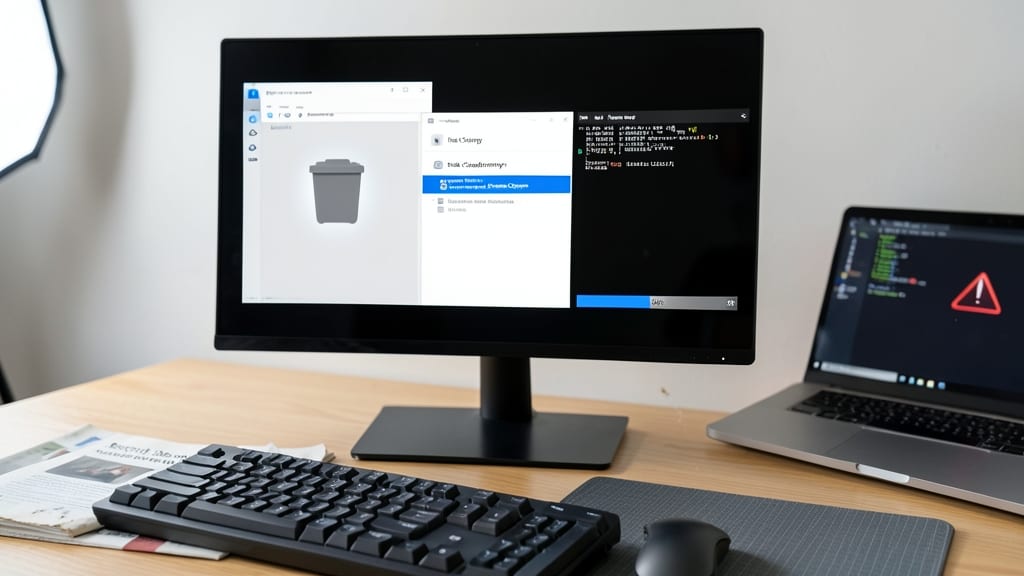
Ever deleted files only to find your hard drive still claims they’re taking up space? This happens when Windows Recycle Bin, Linux deleted files, or system restore points silently hoard gigabytes behind the scenes.
For Windows, empty the Recycle Bin and clear Disk Cleanup’s "System Restore and Shadow Copies" (up to 50GB+ can hide here). On Linux, run sudo rm -rf on /tmp and check find / -type f -name "*.tmp" for lingering files. Both systems often overlook pagefile.sys (Windows) or swap partitions (Linux), which can balloon to unused sizes.
Helpdesk agents will love the three-step verification: check df -h (Linux) or File Explorer’s "Hidden Items" (Windows) first. This cuts resolution time for users who’ve already emptied their trash. 💻