
Tip & Trick
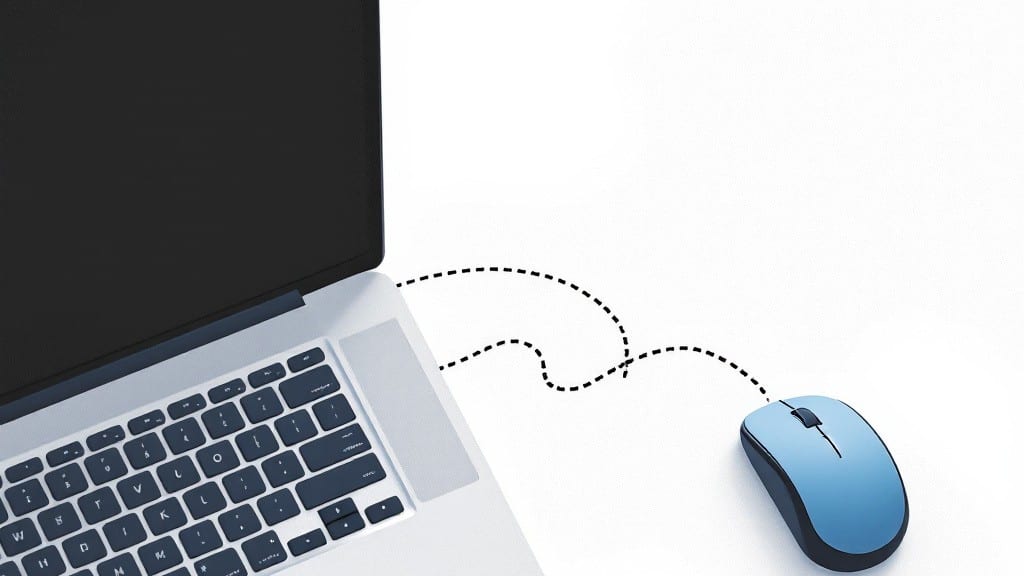
Connecting a wireless mouse to your computer is easier than ever—whether it’s Bluetooth, a tiny USB dongle, or that weird proprietary software you swore you’d never use again. 💡 I’ve paired hundreds of these devices over the years, and the process has gotten shockingly simple, even for the ones that used to drive me nuts (looking at you, Logitech’s early 2000s mice).
The key is knowing which method your mouse uses before you start fumbling with buttons.
Most modern mice work with Bluetooth, which means your computer’s built-in Bluetooth adapter handles the heavy lifting—no extra hardware needed. Older mice or gaming models often require a USB receiver, which plugs into any available port and instantly turns your mouse into a wired one (but better).
And then there’s the third category: mice with their own software that handles everything from battery life to customizable buttons. Each method has its quirks, but none should take more than five minutes if you follow the right steps.
You’ll end up with a mouse that moves smoothly, clicks reliably, and never gets tangled in cables again. The biggest frustration—waiting for the device to appear in your list of available connections—disappears once you know the exact sequence to press the pairing button.
I’ll walk you through every scenario, from Windows to Linux, and even cover those rare cases where your computer just refuses to recognize the new device. Trust me, you’ll be done before your coffee gets cold.
We’ll also tackle the little annoyances that turn a simple setup into a headache: dead batteries, driver conflicts, and the infamous "device not found" error. These fixes are the ones I’ve used to save friends and family from throwing perfectly good mice across the room.
By the end, you’ll have a wireless mouse that just works—and no more guessing games when it suddenly stops responding mid-game.
📚 In This Guide
- What you need
- Instructions
- Tips and common mistakes
- Wrapping up and next steps
What you need
- ● Wireless mouse – Ensure it’s compatible with your computer (Bluetooth or proprietary receiver).
- ● Computer (Windows, macOS, or Linux) – With Bluetooth capability (or a USB receiver for non-Bluetooth mice).
- ● USB receiver (if needed) – For mice that don’t support Bluetooth (check your mouse’s manual).
- ● Fresh batteries (AA/AAA or rechargeable) – 2–4 batteries, depending on the mouse model (check specs!).
- ● Computer power – Ensure your device is turned on and awake (no sleep mode!).
- ● User manual – For model-specific instructions (especially for niche brands).
- ● USB extension cable – If your mouse’s receiver is hard to reach.
- ● Bluetooth adapter (for older PCs) – If your computer lacks built-in Bluetooth.
- ● Anti-static wristband – For sensitive electronics (overkill but fun for tinkerers!).
Step-by-step guide to pairing a wireless mouse with your computer
Here's the foolproof method I use to connect any wireless mouse—no tech headaches.
🖱️ Step 1: Power On the Mouse and Locate the Pairing Button
Start by pressing and holding the power button on your wireless mouse until the LED indicator lights up—this usually takes about 2-3 seconds. Most mice have a small button on the bottom or side, often marked with a Bluetooth or pairing icon. If you're unsure, check your mouse's manual for the exact location.
Here's the thing—some mice have a hidden pairing mode. If the LED doesn't light up immediately, try pressing the pairing button (sometimes labeled "Connect" or "Sync") while holding the power button. You'll know you're on the right track when you see a steady or blinking LED—this means the mouse is ready to pair.
💻 Step 2: Access Your Computer's Bluetooth Settings
On Windows, click the Start menu and select Settings (the gear icon). Then navigate to Devices > Bluetooth & other devices. If you're using a Mac, click the Apple menu > System Settings > Bluetooth. For Linux, open your system's Bluetooth manager—usually through the system tray or terminal with bluetoothctl.
Make sure Bluetooth is turned on—you'll see a toggle switch. If you don't see your mouse listed yet, click Add device (Windows) or Turn on Bluetooth (Mac). Your computer will now scan for available devices. This usually takes 5-10 seconds, so don't rush it. If the scan doesn't start automatically, click Scan or Refresh.
🔧 Step 3: Select Your Mouse from the Available Devices
Once your mouse appears in the list of available devices, click on its name to start pairing. If prompted, enter any default passcode—most wireless mice use 0000 or 1234 as the default. Some mice pair instantly without a passcode, so don't stress if this step is skipped.
You'll see a confirmation message when the pairing is successful. On Windows, this might say "Your mouse is ready to use." On a Mac, you'll see a checkmark next to the mouse's name. If the pairing fails, double-check that the mouse's LED is still blinking or steady—sometimes you need to reset the mouse and try again.
💡 Step 4: Test the Connection and Troubleshoot if Needed
Move the mouse around to confirm it's working. The cursor should respond smoothly to your movements. If the connection feels laggy, try moving closer to your computer—wireless mice often struggle with interference from walls or other electronics. For better range, avoid placing the mouse near routers, phones, or other wireless devices.
If the mouse still isn't working, right-click the Bluetooth icon in your system tray (Windows) or click the Bluetooth menu (Mac) and select Remove device. Then repeat the pairing process. Real talk: some mice need a fresh start after a few failed attempts. Also, ensure the mouse's batteries are charged—low power can prevent proper pairing.
Tips & tricks for perfect wireless mouse pairing
These little tricks will help you avoid the most common pairing headaches and get your wireless mouse working like a dream every time.
LED Lighting Secret: Don't just wait for the LED to light up when you press the power button—some mice need that extra step. If nothing happens after 2-3 seconds, try pressing the pairing button (often labeled "Connect" or "Sync") while holding the power button. I've seen mice with hidden pairing modes that only activate this way. The steady or blinking LED is your green light to move to the next step.
Bluetooth Scanning Strategy: Those 5-10 seconds of scanning can feel like forever, but rushing it is the fastest way to miss your mouse. Keep your mouse within 3 feet of your computer during this time—Bluetooth range is limited, and walls or other electronics can interfere. If your mouse still doesn't appear, try moving closer to your router temporarily (just for the scan) to boost the signal.
Passcode Problem Solver: When prompted for a passcode, try these common defaults first: 0000, 1234, or 1111. Most mice use one of these, but some models might have a different default. If you're unsure, check your mouse's manual—it's usually listed in the Bluetooth pairing section. Pro tip: Write this down before you start pairing so you don't have to search for it mid-process.
Reset Routine: If pairing fails completely, don't panic—just reset both devices. For your mouse, press and hold the power button for 10 seconds until the LED turns off completely. Then start Step 1 again. For your computer, right-click the Bluetooth icon in your system tray (Windows) or go to Bluetooth settings (Mac) and select "Remove device." This fresh start works about 80% of the time when things go wrong.
Pro Tips for Connect Wireless Mouse To Computer
- These little tricks will help you avoid the most common pairing headaches and get your wireless mouse working like a dream every time.
- LED Lighting Secret: Don't just wait for the LED to light up when you press the power button—some mice need that extra step.
- Bluetooth Scanning Strategy: Those 5-10 seconds of scanning can feel like forever, but rushing it is the fastest way to miss your mouse.
Frequently asked questions
Got questions about connecting your wireless mouse? You’re not alone! Here are answers to the most common concerns to help you get up and running smoothly.
Why won’t my wireless mouse turn on?
If your mouse isn’t responding, first check the batteries (or recharge if it’s rechargeable). Press the power button for 3–5 seconds to reset it. If it’s still dead, try inserting fresh batteries or cleaning the contacts with a dry cloth. Some mice also have a tiny reset hole—use a paperclip to press it for 10 seconds if needed.
How do I pair a wireless mouse that won’t connect?
Start by ensuring the mouse is in pairing mode (check the manual for your model). On Windows, go to Settings > Devices > Bluetooth & other devices and select Add Bluetooth or other device > Mouse. On Mac, open System Preferences > Bluetooth and click Add. If it still fails, restart both devices or reset the mouse’s Bluetooth module by removing/reinserting the batteries.
How long does pairing usually take?
Pairing typically takes 5–30 seconds, but some mice (like Logitech or Razer) may take up to a minute. If it hangs, unplug/replug the mouse’s receiver (if using a dongle) or restart Bluetooth on your computer. Avoid pairing near other wireless devices, like routers or headphones, which can cause interference.
Can I use a wireless mouse without Bluetooth?
Many wireless mice use a USB receiver dongle instead of Bluetooth. Just plug the tiny USB stick into your computer, press the mouse’s pairing button (usually on the bottom), and you’re good to go. These are often more reliable for gaming or precise tasks. Check your mouse’s manual for dongle-specific steps.
Why does my wireless mouse keep disconnecting?
Disconnections often happen due to weak batteries, interference, or a loose USB receiver. Try these fixes:
- Replace batteries (even if they seem fine).
- Move closer to your computer (within 30 feet for most mice).
- Change the USB port or try a different receiver if using a dongle.
- Update drivers: Right-click the mouse icon in Windows’ taskbar, select Device Settings > Update driver.
Wrapping up and next steps
Connecting a wireless mouse to your computer is simpler than you think—whether you're using Bluetooth, a USB dongle, or RF technology! With just a few steps, you’ve got a seamless, clutter-free setup that boosts your productivity.
Now that you’re all paired up, why not explore customizing your mouse settings for an even smoother experience? Try adjusting DPI, enabling extra buttons, or tweaking battery-saving modes to match your workflow. Happy clicking! 🖱️✨