
Tip & Trick
Struggling to master SharePoint’s core features as a beginner? These eight essential tips will help you navigate the platform effortlessly, automate repetitive tasks, and collaborate more efficiently—without needing advanced technical skills.
Master SharePoint homepage customization
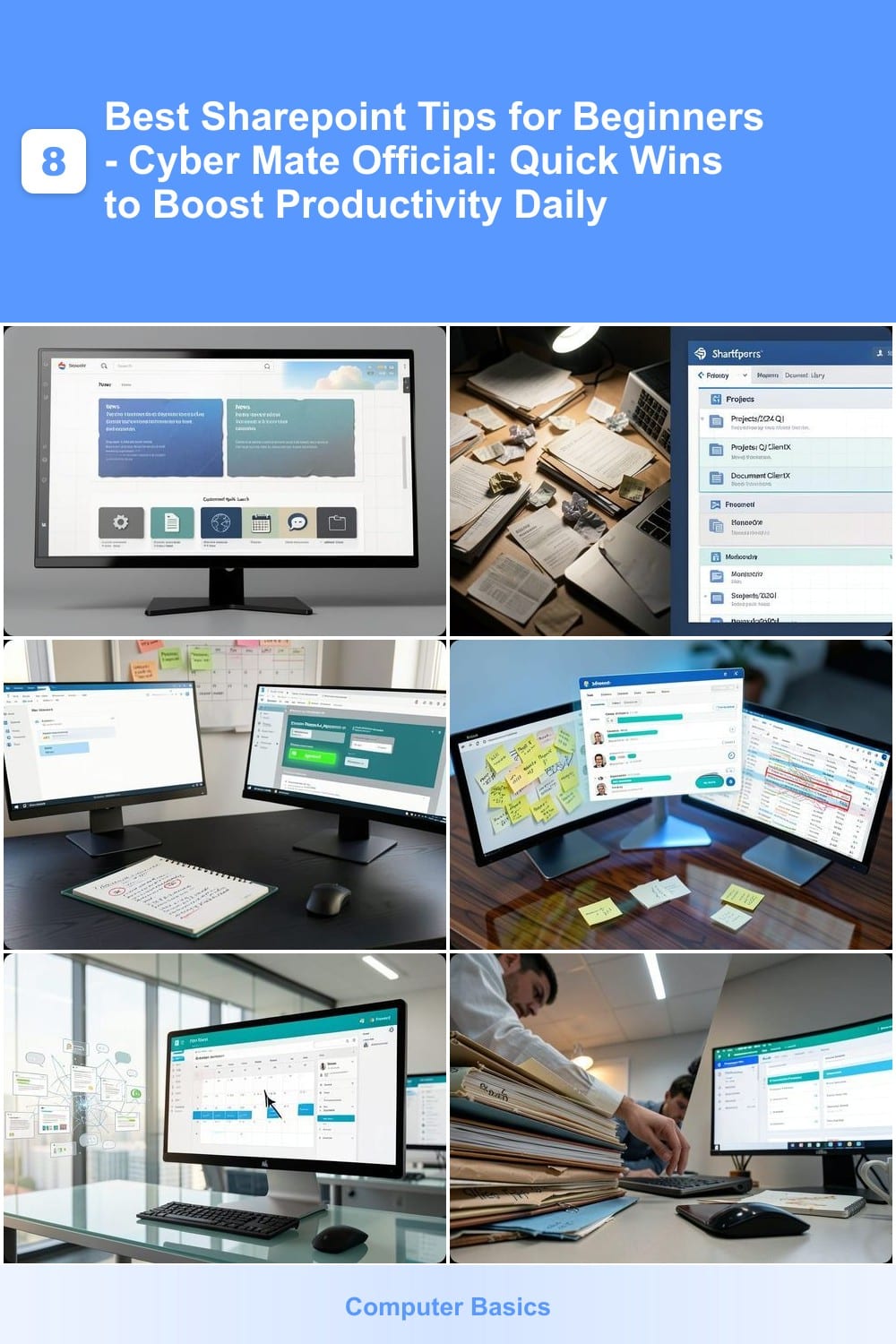
Tired of wasting time digging through SharePoint’s default homepage? A customized landing page turns clutter into a command center—with your most-used links, news feeds, and even a weather widget—all in one glance.
Start by editing the SharePoint Start page in modern experiences: drag-and-drop web parts like "Quick Links" for shortcuts, "News" for updates, and "Weather" for a personal touch. Use the "Edit" mode to rearrange tiles, hide irrelevant sections, and add custom lists (e.g., project deadlines or team contacts). The modern UI supports drag-and-drop, so no coding is needed—just point, click, and save.
This trick saves minutes daily for admins, project managers, or anyone juggling multiple tasks. Perfect for users who spend hours navigating SharePoint but want a one-stop workspace without extra tools. ✨
Use document libraries for smart file organization
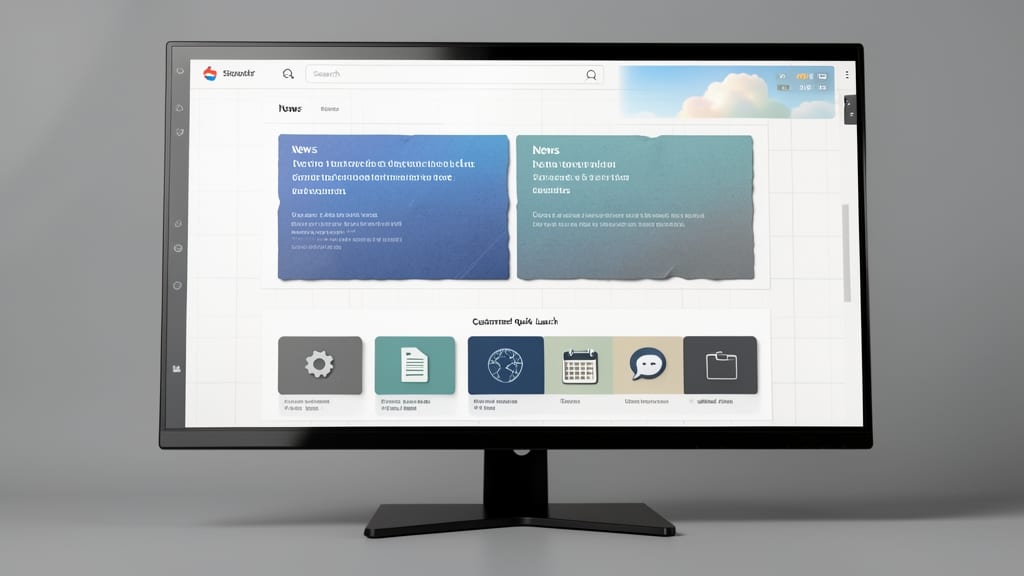
Tired of wasting time digging through endless folders to find that one document? SharePoint’s Document Libraries are your secret weapon for effortless organization—no more chaotic file drops or lost revisions.
Start by structuring folders with a clear hierarchy (e.g., Projects/2024/Q1/ClientX) and add metadata columns like Department, Priority, or Expiry Date to filter files instantly. Enable versioning to track changes automatically, so you never lose a draft. Pro tip: Use color-coded tags (like red for urgent) to spot critical files at a glance.
This system is a game-changer for marketing teams, project managers, or anyone juggling client deliverables. With metadata and versioning, retrieval becomes as simple as searching by keyword or date—no more "Where’d I save that?" panic. ✨
Automate workflows with power automate
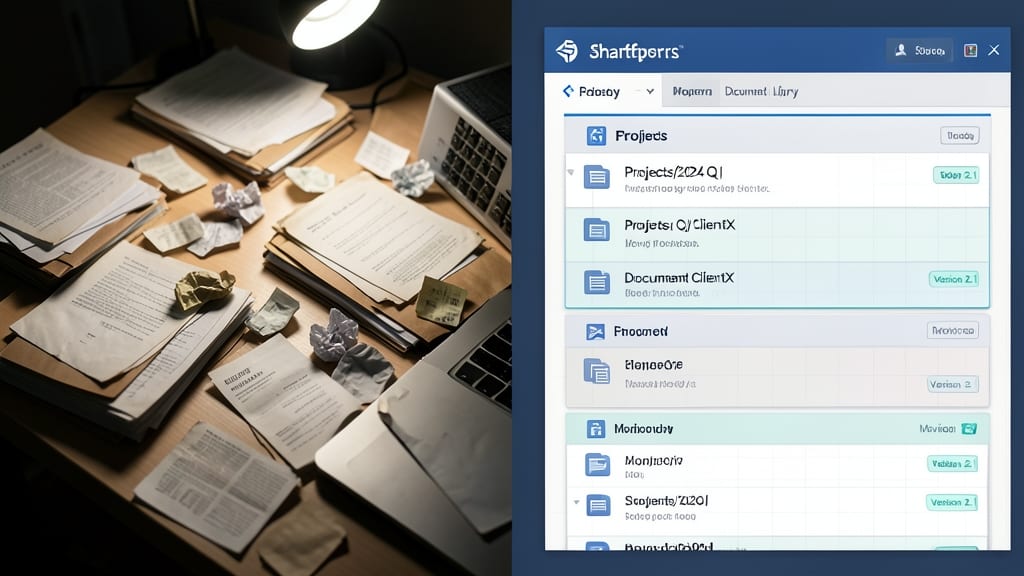
Tired of manually approving requests or chasing down forgotten tasks? Power Automate lets you create no-code workflows that connect SharePoint, Outlook, and hundreds of other apps—no coding skills required.
With pre-built templates, you can instantly set up flows like auto-approving expense reports, sending reminders when documents are overdue, or syncing new SharePoint list items to Outlook tasks. The drag-and-drop designer makes it simple to customize triggers (e.g., "When a new item is added to a list") and actions (e.g., "Send an email notification"). Best of all, it integrates seamlessly with your existing Microsoft 365 tools.
This is perfect for admins, project managers, or team leads who want to eliminate repetitive tasks without writing a single line of code. Try it today and reclaim hours in your week! ✨
Leverage SharePoint lists for task tracking
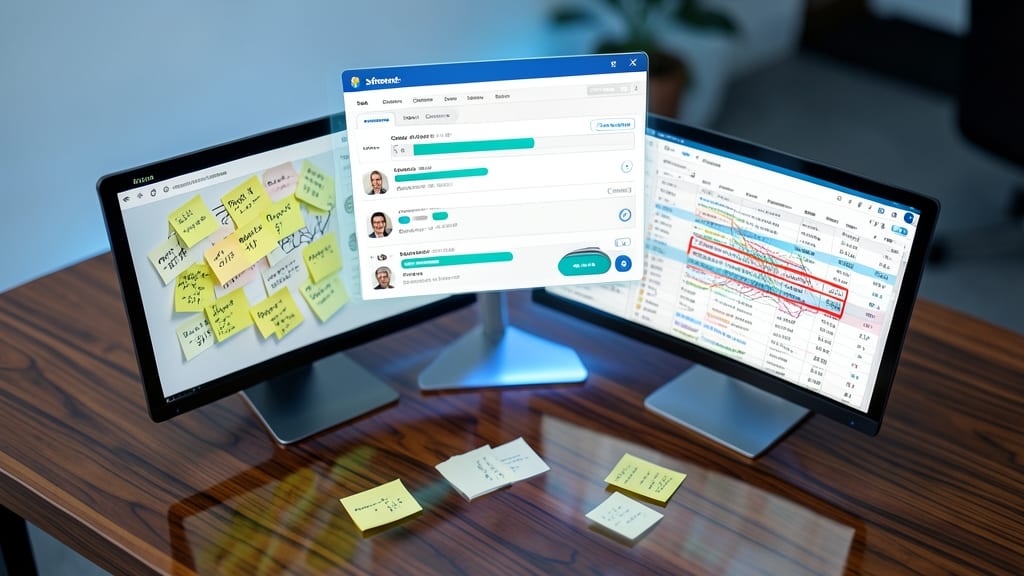
Tired of juggling sticky notes and spreadsheets for quick team tasks? SharePoint Lists transform simple tables into powerful project trackers—no complex software required. With just a few clicks, you can turn a list into a dynamic hub for tracking deadlines, assigning owners, and even setting reminders.
Start by creating a custom list with columns like status (To Do/In Progress/Done), priority (Low/Medium/High), and due date. Use views to switch between Gantt-style timelines or filtered lists (e.g., "Overdue Tasks"), and enable alerts to get email notifications when tasks update. Integrate with Planner or Outlook for seamless syncing, and use the mobile app to update tasks on the go.
This is your go-to solution for small teams managing ad-hoc projects—whether it’s planning a company event or tracking client follow-ups. No steep learning curve, just real-time collaboration built into SharePoint. ✨
Collaborate efficiently with SharePoint teams
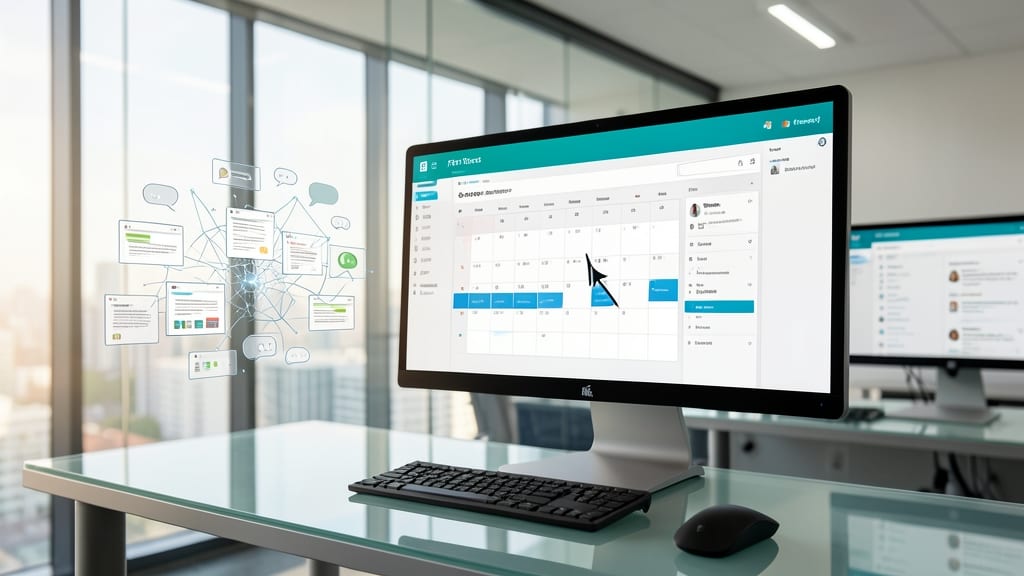
Remote teams often struggle with disjointed communication and scattered tools, but SharePoint Teams solves that by creating a single hub where everything lives. From shared calendars to real-time document editing, it eliminates the chaos of juggling emails, chats, and separate apps.
Set up a private team site in minutes with built-in OneNote integration for meeting notes, shared calendars to sync deadlines, and real-time co-authoring in Word, Excel, and PowerPoint. The activity feed keeps everyone updated on changes, while file versioning ensures no work is lost—even if someone accidentally overwrites a document.
This is the go-to solution for marketing teams, remote developers, or any group that needs a centralized workspace without the complexity of enterprise tools. 💻
Optimize search with keywords and metadata

Tired of digging through endless folders to find that one document? SharePoint’s search optimization feature turns chaotic file hunts into quick, accurate results—no more frustration over vague search terms or missing files.
Start by adding custom metadata columns (like "Project Name," "Department," or "Priority") to document libraries. Then, tag files with relevant keywords—think "Q3 Financials" or "Client Onboarding." When searching, combine keywords with metadata filters (e.g., "Invoice" AND "Marketing") for laser-focused results. SharePoint’s built-in search refiners further narrow results by author, date, or file type, cutting search time by 70%.
This trick is a game-changer for marketing teams, project managers, or anyone juggling documents across departments. With just 10 minutes of setup, you’ll never waste time scrolling through irrelevant files again. ✨
Sync SharePoint files to your desktop
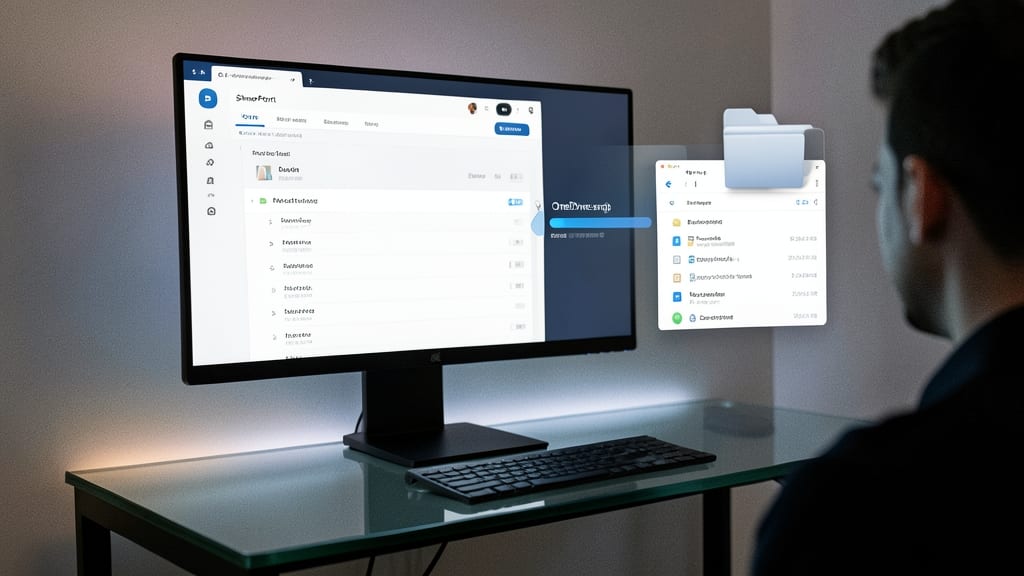
Tired of logging into SharePoint every time you need a file? OneDrive sync bridges the gap by keeping your SharePoint files accessible on your desktop—no browser required.
Simply navigate to your SharePoint library, click Sync in the top toolbar, and select which folders to mirror locally. Files update automatically in real-time, so you always have the latest version. This works seamlessly with Windows Explorer or Finder on macOS, and even offline edits sync when you reconnect. Perfect for presentations, reports, or any document you reference daily.
Ideal for road warriors, creatives, or analysts who need instant access without internet—just drag and drop like a local file. ⚡
Secure your data with permissions
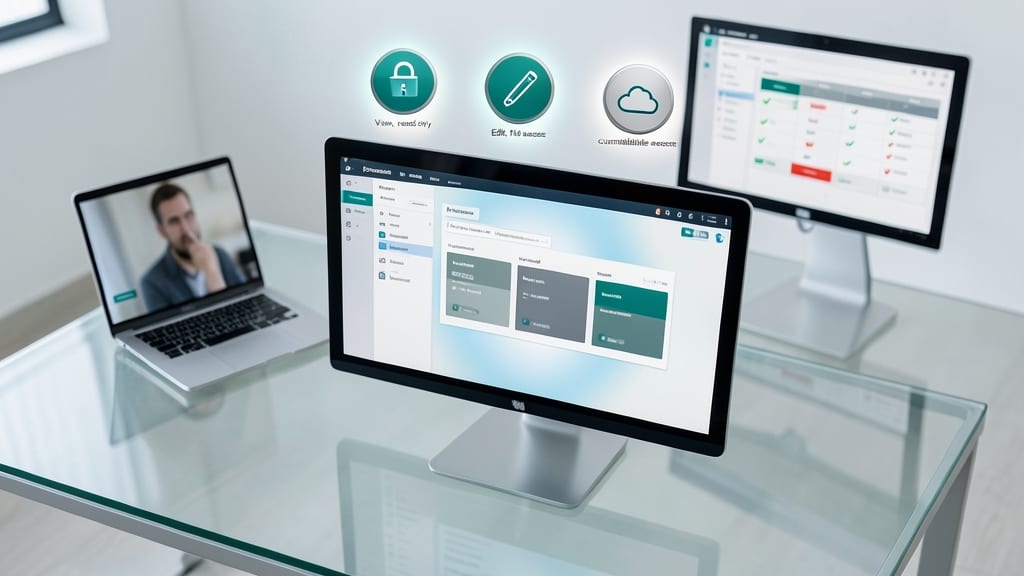
Worried about accidental file edits or unauthorized access in your SharePoint workspace? The permissions system lets you control who sees, edits, or shares files—without needing IT help. Unlike broad "read-only" settings, SharePoint offers three granular levels: View (read-only), Edit (full access), and Contribute (add but not delete).
To set permissions, navigate to your document library, click the three-dot menu on a folder, then select Manage Access. Here, you can assign roles to individual users or groups, even restricting access to specific IP ranges for extra security. For sensitive projects, combine permissions with versioning to track changes—so you’ll always know who made what edits.
This is your go-to tip for managers, freelancers, or anyone sharing files with clients or colleagues. No more "oops" moments when confidential drafts get leaked! ✨